Friday, May 14, 2010

Adding PDF icon in SharePoint 2007

Hi all, 

In one of the projects, I had to display PDF icon whenever users uplaods a PDF file.Apparently, no coding efforts needed to achieve this.

PART 1: Central Administration 

i) Go to Central Administration > Shared Services > Search Settings > File Types >Add File Type.
ii) Enter ‘pdf’ as a file extension and save.
iii) Perform the full index crawl. 

PART 2: Images and XML

i) IMAGES: Go to C:\Program Files\Common Files\Microsoft Shared\web server extensions\12\TEMPLATE\IMAGES and copy the PDF icon (from internet) and name it pdfIcon.gif. 
 

ii) C:\Program Files\Common Files\Microsoft Shared\web server extensions\12\TEMPLATE\XML and open the file in notepad. 

iii) Add a new entry under <ByExtension>
<Mapping Key="pdf" Value="pdfIcon.gif" />
 
iv) IISRESET 
 
and that's it.  

Please note we can do it only on development environment and/or test server.  If on production server does not have PDF logo, we need to contact SharePoint administrators or the infrastructure team. 

Cheers, 
--aaroh

Thursday, May 13, 2010

How to: Displaying Data by Using the SPGridView Control in SharePoint 2007

Hi all,

SharePoint 2007 provides an exciting web control named as SPGridView. This control provides lot of functionalities:
  • Paging 
  • Sorting 
  • Grouping
  • Filtering 
  • Resizing columns 
  • Bind the SharePoint list or custom data to the SPGridView etc.

Please refer to Ted Pattison's video on the SPGridView. I will extend the same code where I have created an application page and build the SPGridView on top of it.

Step1: The ASPX Page 

Open the AppPage.apsx page and add two additional lines so that we can use SPGridView

<%@ Page Language="C#" MasterPageFile="~/_layouts/application.master" AutoEventWireup="true" Inherits="CustomAppPage.AppPage, CustomAppPage,  Version=1.0.0.0, Culture=neutral, PublicKeyToken=fe057018f74cd3a4" %>

<%@ Register Tagprefix="SharePoint" Namespace="Microsoft.SharePoint.WebControls" Assembly="Microsoft.SharePoint, Version=12.0.0.0, Culture=neutral, PublicKeyToken=71e9bce111e9429c" %> 

<%@ Import Namespace="Microsoft.SharePoint" %>

Step2: On the content placeholder "PlaceHolderMain", we create a SPGridView control as follows:

<asp:Content ID="Main" runat="server" ContentPlaceHolderID="PlaceHolderMain">
        Custom SPGridView
   <SharePoint:SPGridView
   runat="server"
   ID="grdPropertyValues"
   AutoGenerateColumns="false"
   RowStyle-BackColor="#DDDDDD"
   AlternatingRowStyle-BackColor="#EEEEEE"   />
  
</asp:Content>

Step3: The Code File

Open the AppPage.aspx.cs page and create an OnLoad function. We are program against the object model.

-----------------------------------------------------------
  public partial class AppPage : LayoutsPageBase
    {
        protected void Page_Load(object sender, EventArgs e)
        {

        }

        protected override void OnLoad(EventArgs e)
        {
            SPSite siteCollection = this.Site;
            SPWeb site = this.Web;
            
            // SOME PROCESSING HERE!

        }
    }

-----------------------------------------------------------

Step4:  The Helper object

We will create a custom class which will eventually used by AppPage.aspx.cs file. 
We create a new folder called "Utility" and cretae a C# file named "SPGridViewHelper.cs".

 The helper class is to simply create an instance of name-value pairs. Firstly, it will instantiate "DataTable" object whch has two columns: 
i) PropertyName (string)
ii) PropertyValue (string)

The when somebody uses function "AddProperty",  this utility method simply add new row in the data table as name-value pair. 

The function BindGrid adds two SPBoundField named fldPropertyName and fldPropertyValue, attach the data source and binds to the grid. 

Step5: The complete code

protected override void OnLoad(EventArgs e)
        {
            SPSite siteCollection = this.Site;
            SPWeb site = this.Web;
            
            // SOME PROCESSING HERE!
           PropertyCollectionBinder pcb = new PropertyCollectionBinder();

            pcb.AddProperty("Site Title", site.Title);
            pcb.AddProperty("Site ID", site.ID.ToString().ToUpper());
            pcb.AddProperty("Current User Name", site.CurrentUser.Name);
            pcb.AddProperty("Current User Name", site.CurrentUser.Name);
            pcb.AddProperty("Current User Name", site.CurrentUser.Name);
            pcb.AddProperty("Current User Name", site.CurrentUser.Name);
            pcb.AddProperty("Current User Name", site.CurrentUser.Name);

            pcb.BindGrid(grdPropertyValues);

        }

Step6: The Output

Deploy the solution and test it. You will receive this kind of screen: 

Cheers, 
--aaroh 

Download the source here.

How to: Create a customized "Application Page" in SharePoint 2007 using WSPBuilder - Part 2

Hi all,

In one of blog posts , I have walked through a simple technique though which we can create an applcation page which will be hosted on SharePoint 2007. We have to note few important points here: 

1) Normal ASPX pages are quite different from SharePoint ASPX pages. 
2) Customized application pages cannot be customized.
3) Application pages are based in the virtual _layouts directory and they are complied. 

There is a much simpler way to create ASPX pages to be hosted onto SharePoint pages.

Step1: Create a new WSPBuilderProject. File >> New >> Project >> Choose WSPBuilder template.Project Name: CustomAppPage.


Step2: Right click on the CustomAppPage project >> Add >> New Item >> choose Feature with Receiver as follows: 


A new folder will be created named "FeatureCode" and will contain 4 methods with some exceptions. Remove the exceptions. 

Step3: Apparently, ASP.NET Project Types CAN NOT be embedded into WSPBuilder project. But there one way to enable those project types using following steps and  you can follow my earlier post here

Once we add the ASP.NET Project types we reload the project.

Step4: In our project we create a new folder named "LAYOUTS" under TEMPLATE folder. Right click on the "LAYOUTS" folder >> Add >> New Item and choose a the web form named "AppPage.aspx" 


The folder structure will look this: 


Step5: Now, we have add few elements: 

i) Refer to SharePoint masterpage and supply the code file (Inherit)
ii) Supply the basic 3 content placeholders 
iii) in the code file, we need to inherit the "LayoutsPageBase"
iv) Add reference to the Microsoft.SharePoint.dll 

Here are the basic AppPage.aspx and the corresponding file

AppPage.aspx
---------------------------------------------------------------------------------
<%@ Page Language="C#" MasterPageFile="~/_layouts/application.master" AutoEventWireup="true" Inherits="CustomAppPage.AppPage, CustomAppPage,  Version=1.0.0.0, Culture=neutral, PublicKeyToken=fe057018f74cd3a4" %>

<%--Control Place Holder--%>
<asp:Content ID="PageTitle" runat="server" contentplaceholderid="PlaceHolderPageTitle" >
   Customer Page Title
</asp:Content>

<asp:Content ID="PageTitleInTitleArea" runat="server"
             contentplaceholderid="PlaceHolderPageTitleInTitleArea" >
   Customer Title Area
</asp:Content>

<asp:Content ID="Main" runat="server" ContentPlaceHolderID="PlaceHolderMain">
    Custom Main
  
</asp:Content>
---------------------------------------------------------------------------------

AppPage.aspx.cs 
---------------------------------------------------------------------------------
using System;
using System.Collections;
using System.Configuration;
using System.Data;
using System.Web;
using System.Web.Security;
using System.Web.UI;
using System.Web.UI.HtmlControls;
using System.Web.UI.WebControls;
using System.Web.UI.WebControls.WebParts;
using Microsoft.SharePoint;
using Microsoft.SharePoint.WebControls;

namespace CustomAppPage
{
    public partial class AppPage : LayoutsPageBase
    {
        protected void Page_Load(object sender, EventArgs e)
        {

        }
    }
}

---------------------------------------------------------------------------------

NOTE: In the inherits, we have to provide the 5 part assembly name including the PublicKeyToken.

Step6: Deploy the solution and test it. We will get this kind of screen: 


Cheers, 
--aaroh 

Download the source here

Tuesday, May 11, 2010

Create a print feature without creating custom ASPX pages

Hi all,

For one of the projects I had create a print feature where users could easily print the list items in document library. SharePoint 2007 does not provide this functionality OOTB. I have seen similar features on codeplex project where Ishai Sagi has created an aspx page and a corresponding master page. But I did not like this idea for creating an additional page for this functionality. I have developed a simpler technique without using any kind of ASPX pages. 

Ingredients: 
--A custom document library 
--IE developer
--A javascript file 
--A CSS file 

The Recipe

Step1: Create a custom list schema. You can follow my previous posts. 

Step2: Create a simple feature with element files. We write a custom action in the elements xml file so that users can go to "Action" menu and click on the "Print List" item: 

elementsPrint.xml
........................................................................................
<?xml version="1.0" encoding="utf-8" ?>
<Elements xmlns="http://schemas.microsoft.com/sharepoint/">
  <CustomAction
    Id="fcef3254-f1a0-419c-bda9-4be18a18cc5d"
    Title="Print List"
    Description="A printer-friendly view of the list."
    RegistrationId="List"
    Location="Microsoft.SharePoint.StandardMenu"
    GroupId="ActionsMenu"
    ImageUrl="_layouts/images/Print/Print.gif">
    <UrlAction Url="javascript:PrintPreview(this);"  />
  </CustomAction>
 </Elements>
.....................................................................................
Note that we have defined a JavaScript function named PrintPreview which we will define in next step.  

Step3: The JavaScript file:
A PrintPreview funtion could be easily found on any ASP.NET site. On of these scripts could be found here. Basically, when we user click on "Print List" at the SharePoint, we can utilize the browser to show the print preview. Number 7 defines the print preview. Therefore, we can get rid of the ASPX pages. 

print.js 
--------------------------------------------------------------
//Function used by the Printmenu Feature.
function  PrintPreview(Object)
{
    SystemPrintPreview(7);
}

//Function used by the Printmenu Feature.
function SystemPrintPreview(OLECMDID)
{
 //var OLECMDID = 10;
 /* OLECMDID values:
 * 6 - print
 * 7 - print preview
 * 8 - page setup (for printing)
 * 1 - open window
 * 4 - Save As
 * 10 - properties
 */try
 {
 var PROMPT = 1; // 1 PROMPT & 2 DONT PROMPT USER
 var oWebBrowser = document.getElementById("WebBrowser1");
 if(oWebBrowser == null)
 {
 var sWebBrowser = '<OBJECT ID="WebBrowser1" WIDTH=0 HEIGHT=0 CLASSID="CLSID:8856F961-340A-11D0-A96B-00C04FD705A2"></OBJECT>';
 document.body.insertAdjacentHTML('beforeEnd', sWebBrowser);
 oWebBrowser = document.getElementById("WebBrowser1");
 //WebBrowser1.outerHTML = "";
  }
oWebBrowser.ExecWB(OLECMDID,PROMPT);
}
catch(e){alert("Printing failed! " + e.message);}
---------------------------------------------------------------


Step4: The CSS file.
Apparently, when you try to print preview of the page, there are some unnecessary items such as breadcrumb, title, left navaigation menu etc. We can use IE developer and identify the "TD" and "TABLE" to hide those elements. 

print.css
----------------------------------------------------------------------------
@media print
{

        BODY {color: silver; background: black;}
    P {
        FONT-SIZE: 25px; COLOR: #000; LINE-HEIGHT: 15px; FONT-FAMILY: Verdana, Arial, Helvetica, sans-serif
    }
    TD {
        FONT-SIZE: 25px; COLOR: #000; LINE-HEIGHT: 15px; FONT-FAMILY: Verdana, Arial, Helvetica, sans-serif
    }
    TH {
        FONT-SIZE: 25px; COLOR: #000; LINE-HEIGHT: 15px; FONT-FAMILY: Verdana, Arial, Helvetica, sans-serif
    }
    LI {
        FONT-SIZE: 25px; COLOR: #000; LINE-HEIGHT: 15px; FONT-FAMILY: Verdana, Arial, Helvetica, sans-serif
    }
    INPUT {
        FONT-SIZE: 25px; COLOR: #000; LINE-HEIGHT: 15px; FONT-FAMILY: Verdana, Arial, Helvetica, sans-serif
    }
    TEXTAREA {
        FONT-SIZE: 25px; COLOR: #000; LINE-HEIGHT: 15px; FONT-FAMILY: Verdana, Arial, Helvetica, sans-serif
    }
    SELECT {
        FONT-SIZE: 25px; COLOR: #000; LINE-HEIGHT: 15px; FONT-FAMILY: Verdana, Arial, Helvetica, sans-serif
    }
       
table.ms-menutoolbar
    {
        display:none;
    }
   
    td.ms-titlearea
    {
        display:none;
    }
   
    td.ms-sitetitle
    {
        display:none;
    }
   
}
---------------------------------------------------------------------------------------------------

Step5: Inject external JavaScript and files into SharePoint. 

We know that "AllItems.aspx" will show the print menu. Therefore, we can register the external  JavaScript and CSS files onto the "AllItems.aspx" page. Two lines of code will do our work.

We can register the files under PlaceHolderAdditionalPageHead ID: 
----------------------------------------------------------
<asp:content contentplaceholderid="PlaceHolderAdditionalPageHead" runat="server">
    <SharePoint:RssLink runat="server" />
   
    <!-- Register the Print.js -->
    <SharePoint:ScriptLink ID="ScriptLink1" Name="/PrintList/Print.js" runat="server" Localizable="false">
    </SharePoint:ScriptLink>
   
    <!-- Register the Print css -->
    <SharePoint:CssRegistration  ID="ScriptLink2" Name="/_layouts/PrintList/styles/Print.css" runat="server">
    </SharePoint:CssRegistration>
   
</asp:content>
-------------------------------------------------------

Note: 

1) JavaScript File:
on the first line (javascript file), you may get an error if you specify the path as  Name="/_layouts/PrintList/Print.js"

BUG
Microsoft.SharePoint.SPException: Cannot make a cache safe URL for "/_layouts/PrintList/print.js", file not found. Please verify that the file exists under the layouts directory.

But if we specify the path as Name="/PrintList/Print.js", it will work fine. 

2) CSS file: 
There is no issue with CSS file though.

I hope it will help others.

Cheers, 
--aaroh 

Download the JavaScript, CSS, elementPrint.xml and AllItems.aspx here.

Monday, May 10, 2010

Developing custom field types for SharePoint 2007


Hi all,

Windows SharePoint Services (WSS) 3.0 give lot of many useful built-in field types and end users can utilize these fields for collecting/disseminating business data in different out-of-the-box list types. At times, the business needs more complex scenarios and customers ask for some field types such as Social Security Number and its validation, US addresses, employee status etc which SharePoint does not provides. In this walk-through, I will demonstrate how we can develop these complex field types, validation, and field type properties as well.I strongly recommend to read Ted Pattison's article on developing custom field types for SharePoint 2007.

What Exactly Is a WSS Field Type?

When users want to create a new column and add it to a list or document library, they must select an underlying field type on which to base this new column. Likewise, a user or developer must also select an underlying field type when creating a new site column. Field types have their name and description. SharePoint 2007 provides several out-of-the-box field types such as:

>> Single line of text
>> Multiple lines of text
>> Date and Time
>> Choice (menu to choose from)
>> Number (1, 1.0, 100)
>> Currency ($, ¥, €)

For developing custom field types 4 things: 
  1. An ASP.NET user control that defines an editing surface known as a RenderingTemplate
  2. A public class to initialize and manage the RenderingTemplate
  3. A public class that defines the actual custom field type
  4. An XML file that is used to deploy the custom field type
I will split into 3 parts for defining 3 new field types: 
a) Social Security Number field type (data validation)
b) United States Address (Multicolumn values)
c) Employee Status (Custom Property Fields)

Step1:  Social Security Number field type (data validation)

Create a new WSPBuilder project and name the project "OfficeSpaceFieldTypes".


Step2: Right click on "OfficeSpaceFieldTypes" project >> Add >> New Item >> Choose WSPBuilder as the category >> Choose "Feature with receiver" and name it "OfficeSpaceFieldTypes"

Under FeatureCode "OfficeSpaceFieldTypes.cs", remove all the exceptions 
(throw new Exception("The method or operation is not implemented.");)

Step3: Create a VSeWSS 1.2 project.

We can create a new field control using VSeWSS for Visual Studio 2008 as we can very easily develop field controls and copy over to our WSPBuilder project. 
Open up Visual Studio >> File >> New >> Project >> From "Project Types" select "SharePoint" and from "Templates" select "Empty". Project name: CustomFieldUsingVSeWSS

Right click on the project >> Add >> New Item >> Field Control >> Name : SocialSecurityNumber


Step4: VS3WSS 1.2 extensions will create three items: 
a) Two C# files that will contain field controls 
b) An XML file for custom field type.

We have to copy over these files to our WSPBuilder project. 

Step5: We are back to our main WSPBuilder project (OfficeSpaceFieldTypes). Under TEMPLATE folder, we create a new folder named "XML". We copy the XML file from VSeWSS 1.2 project and rename to "fldtypes_OfficeSpace.xml" as shown the screen shot below. We also add a new folder named "FieldControlSocialSecurityNumber" and copy the two C# files which we were generated in VSeWSS project.


Step6: In the "CustomFieldUsingVSeWSS" project, the namespace is CustomFieldUsingVSeWSS. We need to change the namespace to our own which is "OfficeSpaceFieldTypes"

Step7: We now focus on XML part and specifically on the FieldTypeClass. We have to assign 5 part assembly name. 

First: The class name i.e. OfficeSpaceFieldTypes.SocialSecurityNumberField (Namespace and the class SocialSecurityNumber.Field.cs )
4 part assembly name: OfficeSpaceFieldTypes, Version=1.0.0.0, Culture=neutral, PublicKeyToken=79bb268b486ef344. 

How to get the public key token? follow my earlier post.


Step8: Data validation 

We need some kind of logic for social security number. The format of SSN is 123-45-1234. We do this logic under SocialSecurityNumber.FieldControl.cs file. 

   public override string GetValidatedString(object value)
        {
            string UserInput = value.ToString();
            string SSN_RegularExpression = @"^\d{3}-\d{2}-\d{4}$";
            if ((this.Required || !string.IsNullOrEmpty(UserInput)) &
                 (!Regex.IsMatch(UserInput, SSN_RegularExpression)))
            {
                throw new SPFieldValidationException("SSN must be form of 123-45-6789");
            }
            return base.GetValidatedString(value);
        }


Step9: To ASP.NET templates. 

 Under "TEMPLATE" folder, we create one more folder named "CONTROLTEMPLATES". It will host our all user controls. But before we proceed further, we have to add ASP.NET templates. Follow my earlier post and follow same steps. 
Once ASP.NET templates are added in our project, we can add new web controls. Right click on "CONTROLTEMPLATES">> Add >> New Item >> Choose "Web User Control" and name it "OfficeSpace.SocialSecurityNumber". Delete the both the C# files as shown below. 


Go to OfficeSpace.SocialSecurityNumber.ascx file and write following code: 


VSeWSS give us a template and we can extend using our own custom logic. By default, VSeWSS extensions give this method: 

public class SocialSecurityNumberFieldControl : TextField
    {
    } 

We override using  "BaseFieldControl" 

public class SocialSecurityNumberFieldControl : BaseFieldControl
 { 
   protected TextBox txtUserInput;
        protected override string DefaultTemplateName
        {
            get
            {
                return "SocialSecurityNumberRenderingTemplate";
            }
        }

        protected override void CreateChildControls()
        {
            base.CreateChildControls();
            txtUserInput = (TextBox)this.TemplateContainer.FindControl("txtUserInput");
        }

        public override object Value
        {
            get
            {
                this.EnsureChildControls();
                return txtUserInput.Text;
            }
            set
            {
                this.EnsureChildControls();
                txtUserInput.Text = (string)this.ItemFieldValue;
            }
        }
}

Depoy the code >> Activate the feature >> Add new column in Task List. 

Add a new entry and test the SSN field. 


----------------------------------------------------------------------------------------------------------------------

Step1: United States Address (Multicolumn values)

We switch the CustomFieldUsingVSeWSS project >> Right click on the project >> Add >> New Item >> Field Control >> Name : UnitedStatesAddres. 

Two C# files that will be generated that contains field controls. 
i) UnitedStatesAddress.Field.cs
ii) UnitedStatesAddress.FieldControl.cs


Step2: Switch back to the OfficeSpaceFieldTypes project, right click on the project >> Create a new folder named "FieldControlUnitedStatesAddress". Copy the both the C# files (UnitedStatesAddress.Field.cs and UnitedStatesAddress.FieldControl.cs) into OfficeSpaceFieldsControls 


Step3:  In the "CustomFieldUsingVSeWSS" project, the namespace is CustomFieldUsingVSeWSS. We need to change the namespace to our own which is "OfficeSpaceFieldTypes"


Step4: Right click on "CONTROLTEMPLATES">> Add >> New Item >> Choose "Web User Control" and name it "OfficeSpace.UnitedStatesAddress". Delete the both the C# files as shown below. 


Go to OfficeSpace.UnitedStatesAddress.ascx file and write following code: 


Step5: In the UnitedStatesAddress.FieldControl.cs code, we write in this code: 

public class UnitedStatesAddressFieldControl : BaseFieldControl
    {
        protected override string DefaultTemplateName
        {
            get
            {
                return "UnitedStatesAddressRenderingTemplate";
            }
        }
        protected TextBox txtStreet;
        protected TextBox txtCity;
        protected TextBox txtState;
        protected TextBox txtZipcode;


        protected override void CreateChildControls()
        {
            base.CreateChildControls();
            txtStreet = (TextBox)this.TemplateContainer.FindControl("txtStreet");
            txtCity = (TextBox)this.TemplateContainer.FindControl("txtCity");
            txtState = (TextBox)this.TemplateContainer.FindControl("txtState");
            txtZipcode = (TextBox)this.TemplateContainer.FindControl("txtZipcode");
        }

        public override object Value
        {
            get
            {
                this.EnsureChildControls();
                SPFieldMultiColumnValue mcv = new SPFieldMultiColumnValue(4);
                mcv[0] = txtStreet.Text;
                mcv[1] = txtCity.Text;
                mcv[2] = txtState.Text;
                mcv[3] = txtZipcode.Text;
                return mcv;
            }
            set
            {
                this.EnsureChildControls();
                SPFieldMultiColumnValue mcv = (SPFieldMultiColumnValue)this.ItemFieldValue;
                txtStreet.Text = mcv[0];
                txtCity.Text = mcv[1];
                txtState.Text = mcv[2]; ;
                txtZipcode.Text = mcv[3];
            }
        }
    }

Step6: Open fldtypes_OfficeSpace.xml and add the following code: 


Step7: Deploy the project. >> Add new column in Task List. >>

Add a new entry in the task list: 

 --------------------------------------------------------------------------------------------------------------------

Step1: Employee Status (Custom Property Fields)

We switch the CustomFieldUsingVSeWSS project >> Right click on the project >> Add >> New Item >> Field Control >> Name : EmployeeStatus. 

Two C# files that will be generated that contains field controls. 
i) EmployeeStatus.Field.cs
ii) EmployeeStatus.FieldControl.cs


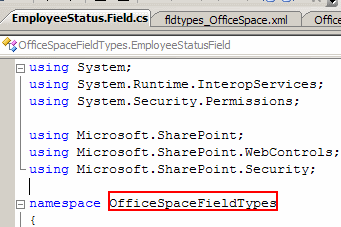
Step2:  Switch back to the OfficeSpaceFieldTypes project, right click on the project >> Create a new folder named "FieldControlEmployeeStatus". Copy the both the C# files (EmployeeStatus.Field.cs and EmployeeStatus.FieldControl.cs) into OfficeSpaceFieldsControls 


Step3: In the "CustomFieldUsingVSeWSS" project, the namespace is CustomFieldUsingVSeWSS. We need to change the namespace to our own which is "OfficeSpaceFieldTypes"


Step4: Right click on "CONTROLTEMPLATES">> Add >> New Item >> Choose "Web User Control" and name it "OfficeSpace.EmployeeStatus.". Delete the both the C# files as shown below. 


Go to OfficeSpace.EmployeeStatus.ascx file and write following code: 


Step5: In the EmployeeStatus.FieldControl.cs code, we write in this code:

public class EmployeeStatusFieldControl : BaseFieldControl
    {
        protected RadioButtonList lstEmployeeStatus;
        protected override string DefaultTemplateName
        {
            get
            {
                return "EmployeeStatusRenderingTemplate";
            }
        }

        protected override void CreateChildControls()
        {
            base.CreateChildControls();
            lstEmployeeStatus = (RadioButtonList)TemplateContainer.FindControl("lstEmployeeStatus");
            if (lstEmployeeStatus != null)
            {
                lstEmployeeStatus.Items.Clear();
                lstEmployeeStatus.Items.Add("Full-time Employee");
                lstEmployeeStatus.Items.Add("Part-time Employee");
                // check to see if contractors are allowed
                bool AllowContactors = (bool)this.Field.GetCustomProperty("AllowContractors");
                if (AllowContactors)
                {
                    lstEmployeeStatus.Items.Add("Contractor");
                }
                // check to see if interns are allowed
                bool AllowInterns = (bool)this.Field.GetCustomProperty("AllowInterns");
                if (AllowInterns)
                {
                    lstEmployeeStatus.Items.Add("Intern");
                }
            }
        }

        public override object Value
        {
            get
            {
                this.EnsureChildControls();
                return lstEmployeeStatus.SelectedValue;
            }
            set
            {
                this.EnsureChildControls();
                lstEmployeeStatus.Items.FindByValue(ItemFieldValue.ToString()).Selected = true;
            }
        }
    }

Step6:  Open fldtypes_OfficeSpace.xml and add the following code:


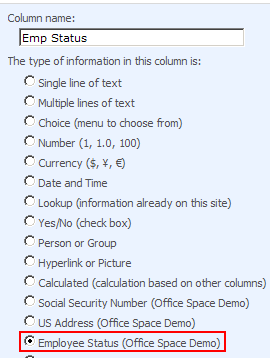
Step7:   Deploy the project. >> Add new column in Task List. >> 


 Step8: Create a new entry in the task list and we can choose one type of employee. 

Cheers, 
--aaroh 

Download the source here. 

References: 

Low Code Reimagined with AI + Copilot Pitch Deck - Copy Copilot day (Virtual) - 2023

 Hi All,  I presneded a session at Pune UG on Low Code Reimagined with AI + Copilot Pitch Deck.  Video is at this address  https://www.youtu...