Thursday, June 6, 2013

0x8107058a Feature XXX for list template ’10005′ is not installed in this farm. The operation could not be completed.

Hi all,

I was looking for a solution which provides Room Booking System where users could choose a specified room, date and time. Furthermore, the solution prevent double booking if some other user books the same room at the same time.

I looked for some third party solutions (Infowise Soltions ($2999), Room Manager ($1490)  and they were quite good. But they provided some extra functionality such as color code within the SharePoint Calendar that was not required by our organization. After, further research I found a free Codeplex solution: SPResourceBooking. I tried the solution on my demo machine and somehow messed up during the activating on SharePoint 2010 environment.

I got following bug:

Bug! 


Error

<nativehr>0x8107058a</nativehr><nativestack></nativestack>Feature XXX for list template ’10005′ is not installed in this farm.  The operation could not be completed. 

As we know that COM objects errors are quite tricky to decode. I discovered that a few users have same issue (NOT with this CodePlex solution) but in general. I downloaded the source code of the this WSP and found they use Site Template to make it work.

In my previous blog post, I had some kind of issue where I had some list which didn't work and I removed using STSADM command line to remove this list. Thus, I tried to attempt the in this scenario.

FIX:

I used STSADM command. The syntax is:

                    stsadm.exe -o forcedeletelist -url <url>

For e.g. this "Resources" was somehow got corrupted and just fire up this command.
stsadm -o forcedeletelist -url http://sp2010/KWSResources as illustrated below
    

Remove the KWSResourceBooking.wsp from the Solution Store, and redeploy again. It worked fine me at the end.

I hope it helps someone.

cheers,
--aaroh  

Sunday, February 3, 2013

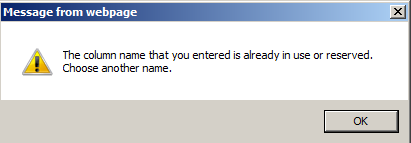
The column name you have entered is already in use or reserved. Choose another name

Hi All,

Scenario: 

I was working for a business requirement where an "Event" has to be used and year, status are required including other fields. Furthermore The "Event" has to used in nearly 8-10 places across sites as well. Therefore I decided to design a site content type for this business requirement so that it can be used for all 8-10 sites. I created a new "Site Content Type", create a new group as "Custom Events"  as illustrated below:


Navigated to Site Actions >> Site Settings >> Site content types >> Custom Events as illustrated below

Clicked on "Events" and create a new site column "Year", column type is "Choice" Field Type and entered the choices

Created a New group named "Events"


and clicked on OK button. 

Issue: 

I bumped into an error: 

Error: The column name that you entered is already in use or reserved. Choose another name
I researched and found that this field "Year" (or Status) field belongs to the "_Hidden" group in the SharePoint Object Model MSDN and thus its not shown up SharePoint User Interface. The business doesn't want to deal with any SharePoint custom development and strictly using SharePoint out of the box features. My options were limited.

Fix: 

Step1: Navigate to the Site Actions >> Site Settings >> Site content types >> Custom Events >> Events (Content Type)

Step2: In the "Events" Content Type, from the "Add from new site column" hyperlink, "Open in new tab" option as shown below:


Step3: Type in the "Year" (which belongs to _Hidden Group)


Step4: On the browser type in following Javascript: 
javascript:g_FieldName={};alert('Successfully cleared forbidden columns'); 


I have to firstly run the javascript mentioned above and hit enter to get the javascript alert. 

Click the "OK" button. 


Step5: I followed the similar steps for "Status" field as well


Step5: On the browser type in following Javascript: 
javascript:g_FieldName={};alert('Successfully cleared forbidden columns'); 


Click the "OK" button.

A new Custom Content Type with our own Year and Status could be defined on this manner.


I hope it helps.

References:
1) SPList.Hidden property
2) Paul Galvin Blog 
3) Jack's Blog 

Sunday, January 13, 2013

How to: Multiple Server Setup with Active Directory, SharePoint 2010 and SQL Server 2008 in different boxes

Hi all,

In most of the production environments, we typically have separate Domain Controller, SharePoint Server 2010 and SQL Server 2008. I have recently built a test environment for SharePoint Server 2010 and this is my demo topology:


In this diagram above I have set up:

a) Domain controller with static IP address of 192.168.10.1 
b) SharePoint Server 2010  with static IP address of 192.168.10.2
c) SQL Server 2010 with static IP address of 192.168.10.3 

There are following prerequisites:

  ü  The servers should be in the same domain.
  ü  Static unique IP addresses for each server.
  ü  Network discovery should be enabled for each server.
  ü  Local administrative rights on each server.  

My test environment is as follows:
  • Domain Controller - Windows Server 2008 R2 SP1 and allocated 1 GB RAM. 
  • SQL Server -  Windows Server 2008 R2 SP1, SQL Server 2008 SP1 and allocated 1 GB RAM. 
  • SharePoint Server 2010: Windows Server 2008 R2 SP1, and allocated 1.5 GB RAM. 

Since my host machine has limited 8GB RAM and three servers to work simultaneously at the same time, I have created this server set up. Please note that TechNet article about Hardware and software requirements (SharePoint Server 2010) is different my set up and they recommend to have minimum of 4GB RAM for SharePoint Server 2010 & SQL Server 2008 R2 to have 8GB RAM.

A) Domain Controller 

I have used Oracle VirtualBox as the Virtualization for building the test environment and please follow my previous blog post about the steps. For setting up Active Directory, please follow my previous blog post How to: Install and Configure SharePoint 2010 - Part 1  till Step 29. 


AD Static IP address
I had written a detailed blog post (How to: Multiple Server Setup for SharePoint 2010) about networking concepts.

B) SQL Server 2008 set up.
After we have completed the configuration of Domain Controller, I moved to set up SQL Server 2008.
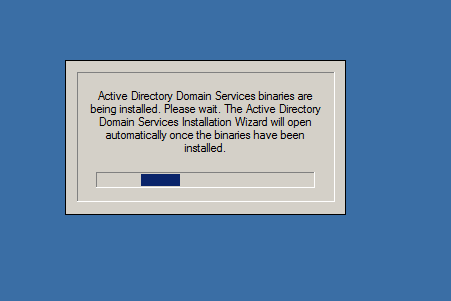
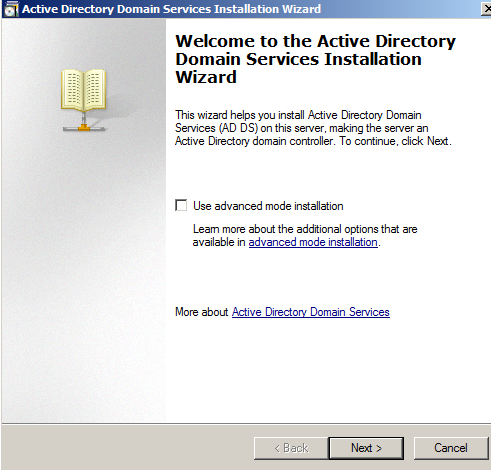
Its a fresh installation  and added roles for Active Directory Domain Services and I was presented with Welcome AD wizard


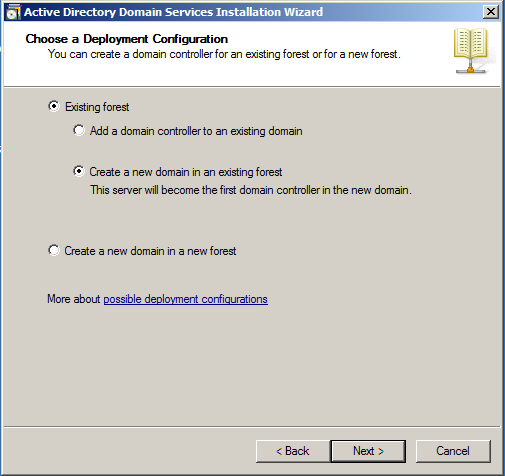
From the AD deployment configuration wizard, I chose "Existing forest" and checked "Create a new domain in an existing forest". I didn't select the first option as I'm not adding an additional domain controller to SQL Server 2008.

Creating a new domain in an existing forest. 

In the next screen, the domain is pre-filled. Click on the "Set...", I am prompted Network Credentials. I keyed in the log in details.


I watched an excellent video about how to add new child domain. (YouTube: Active Directory adding a child domain). I created a Single-label DNS name of the child domain to be: sql as illustrated below:

Adding a child domain

However, when I clicked the "Next" button I got an error.
Failed to examine the active directory forest ldap_search() failed err=52. 

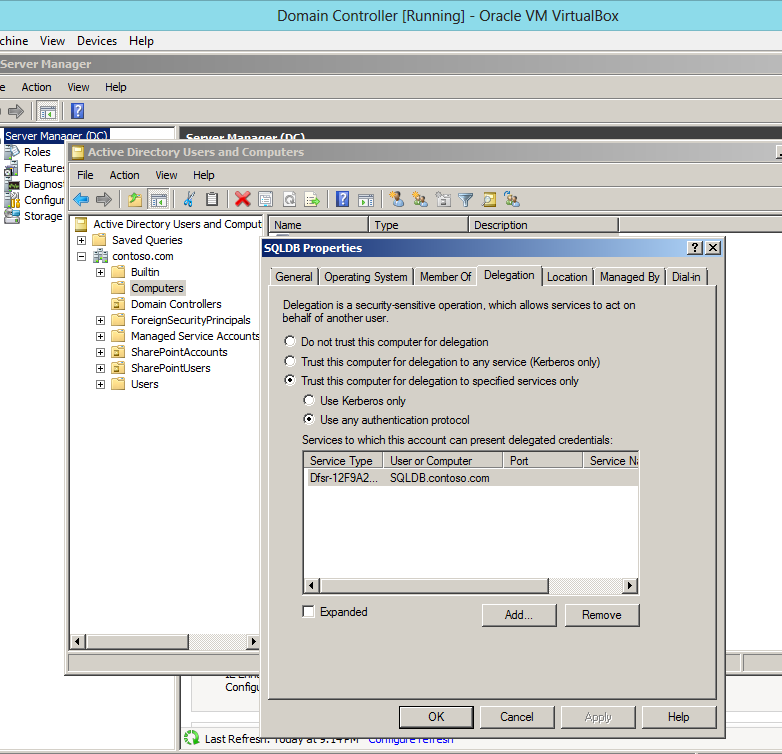
I tried to find if anyone has faced this issue but error code was different when I Google it. I reexamined the Domain controller, clicked on Computers and found that SQLDB server was indeed listed. Right click on SQLDB server, navigated to Delegation tab, checked "Trust this computer for delegation to specified services" and clicked "OK".


I again moved to SQL Server box, created a child domain again and error went away.


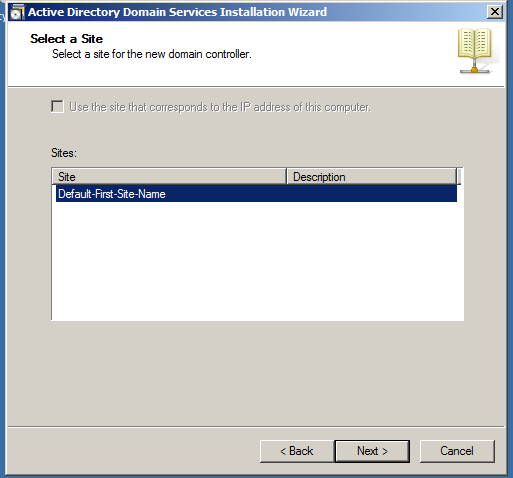
On next screen, I kept the default settings


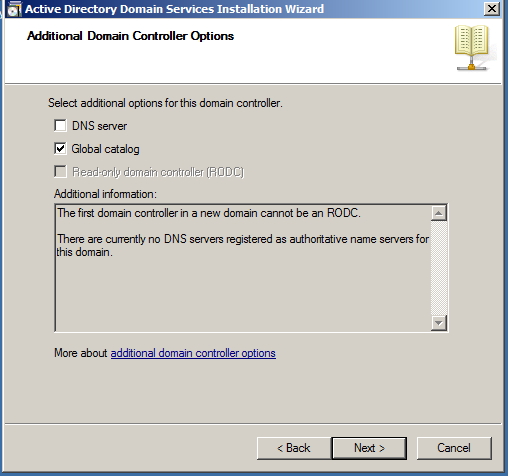
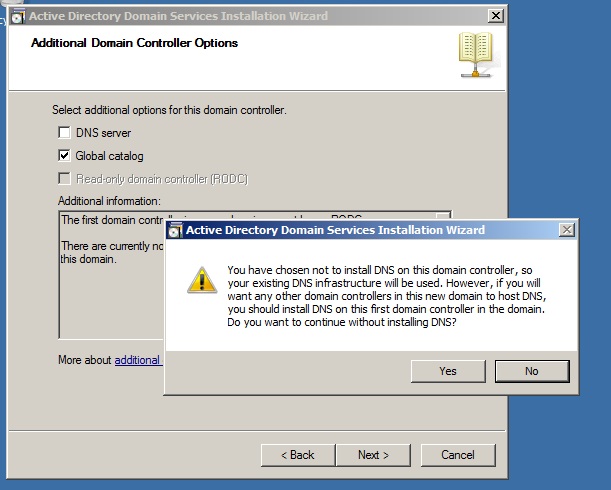
Since I already have DNS on the domain controller, I unchecked "DNS server" option and hit the "Next" button.


The wizard prompted with following warning message and clicked "Yes


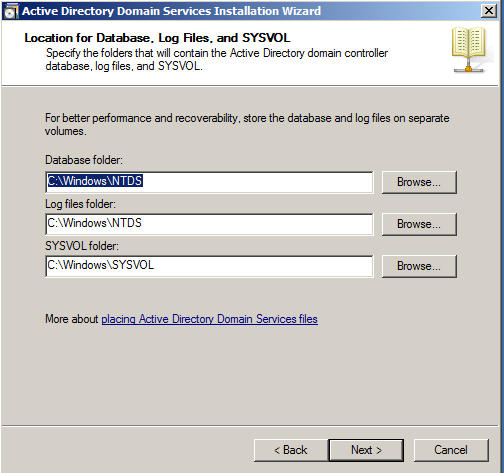
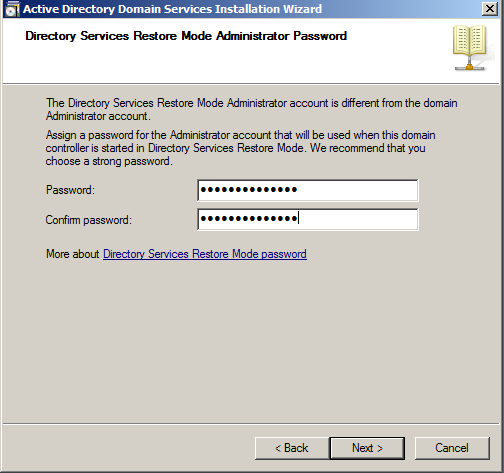
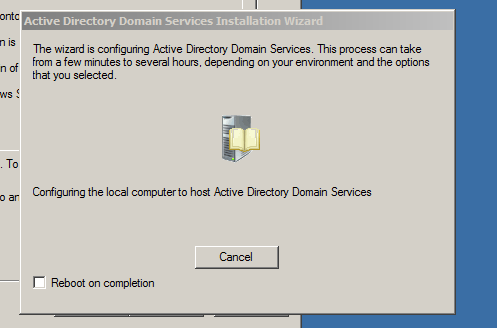
The screens of the AD wizard is similar.


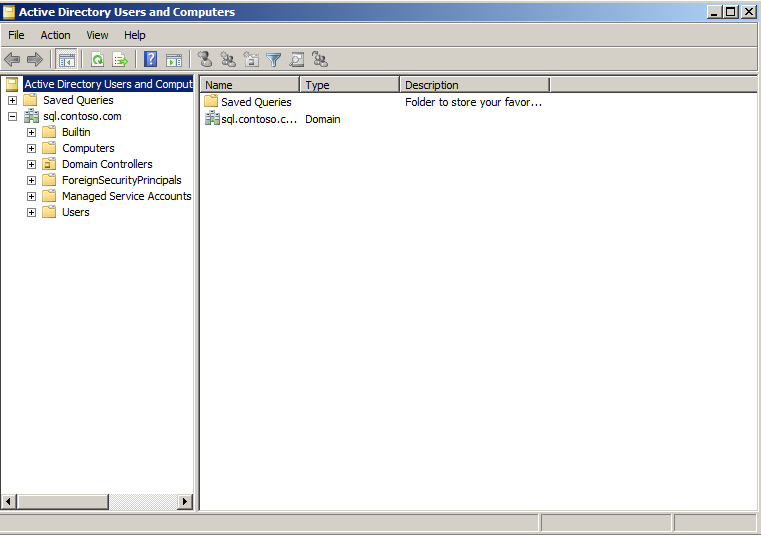
Navigate to the Start >> Administrative Tools >> Active Directory Users and Computers 


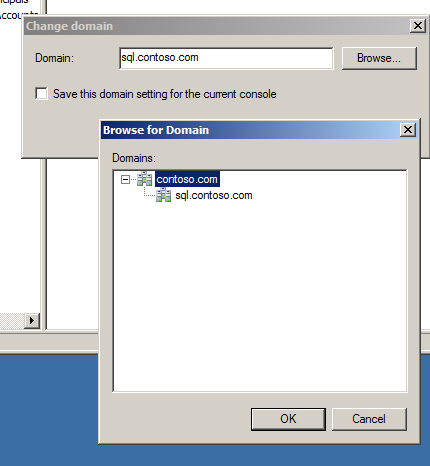
From the top menu go to "Action" and select "Change Domain" to verify if our SharePoint accounts that are in the domain controller exist. 


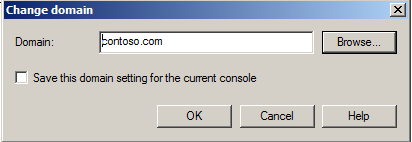
Click on the "Browse" button to view the child domain (sql) and parent domain (contoso). Select the "Contoso" parent domain and click OK button.  


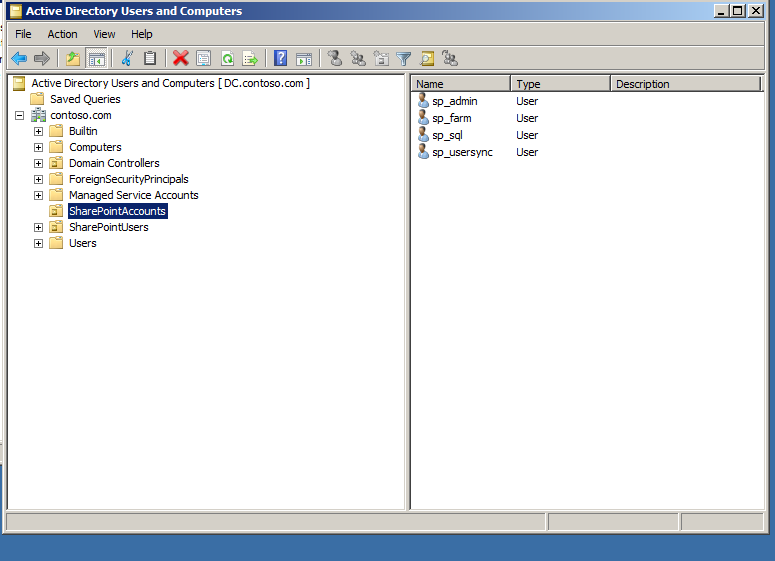
Clearly our SharePointAccounts exist on SQL Server box.


Open the SQL Server 2008 ISO media and follow similar steps as in my previous blog posts (How to: Install and Configure SharePoint 2010 - Part 2) till Step 16


C) SharePoint Server 2010 set up. 

Its again fresh installation and this time I choose "Application Server" & "Web Server" roles. Please note that I have NOT chose "Active Directory Domain Services" as I will connect domain controller at later stage.


From the AD deployment configuration wizard, I chose "Existing forest" and checked "Create a new domain in an existing forest". I didn't select the first option as I'm not adding an additional domain controller to SharePoint Server 2010. 


Creating a new domain in an existing forest.


Since I already have DNS on the domain controller, I unchecked "DNS server" option and hit the "Next" button. 


From the top menu go to "Action" and select "Change Domain" to verify if our SharePoint accounts that are in the domain controller exist. 


Open the SharePoint Server 2010 ISO and Install SharePoint 2010 Prerequisites.

Now, I connect SharePoint Server 2010 to Domain Controller.


I have already did similar step on SQL Server 2008 as well so that all three boxes are connected.
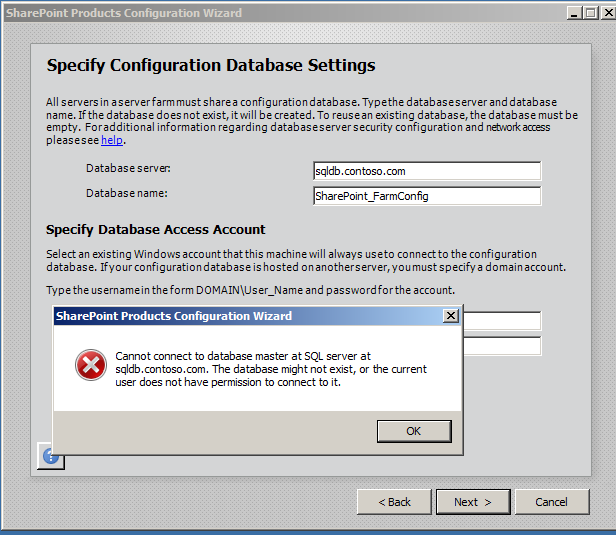
When I ran the SharePoint PSConfig, specified database settings and database access account and when I clicked "Next" I got an error:


Cannot connect to database master at SQL Server at the sqldb.contoso.com. The database might not exist, or the current user does not have permission. 

I knew the SQL Server box does exist, so I ruled out the first option.
The current user is contoso\ administrator in this case.

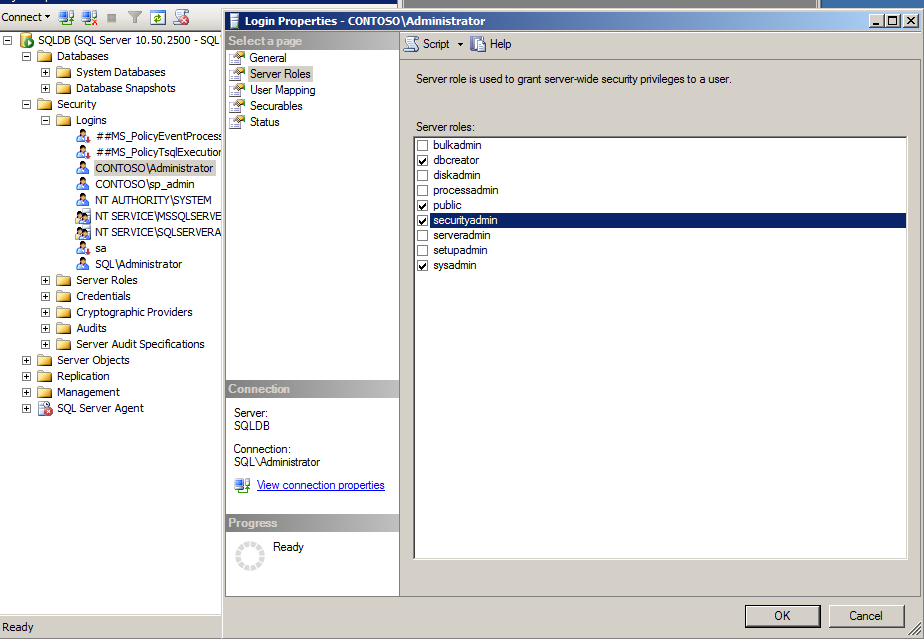
I gave contoso\administartor "dbcreator", "securityadmin" and "sysadmin" on the SQL Server box.


However, I gave permission to contoso\ administrator and again ran PSConfig on the SharePoint 2010 box, I again got the same error.


I found a very useful tip from a Eric Harlan blog post. I have to open a port on SQL Server so that SharePoint is able to contact SQL Server. 

Open SQLDB server, Start >> Control Panel >> Windows Firewall and from left menu choose "Advanced Settings

Select "Inbound Rules" and on the Actions pane create a "New Rule", 

Select the "Port" and click "Next"


From the "Protocols and Ports", select "TCP" and in the Specific local ports type in "1433-1434"


On the "Action", check the "Allow the connection"


On the "Profile", check all three options.


Give the Name of the rule and click on the "Finish" button


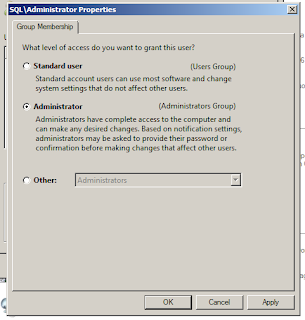
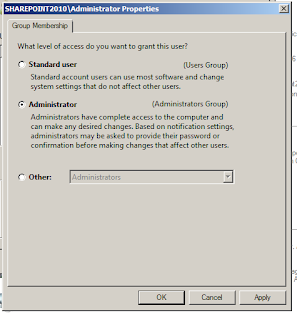
Log on as contoso\ administrator on SQL Server and SharePoint Server 2010 and verify they are local administrator rights by navigating Start >> Run >> netplwiz command

On SQL Server:


On SharePoint Server 2010: 


Fire up the PSConfig on the SharePoint 2010 box and I was presented with SharePoint's passphrase wizard. Type in the PassPhrase and click "Next" button


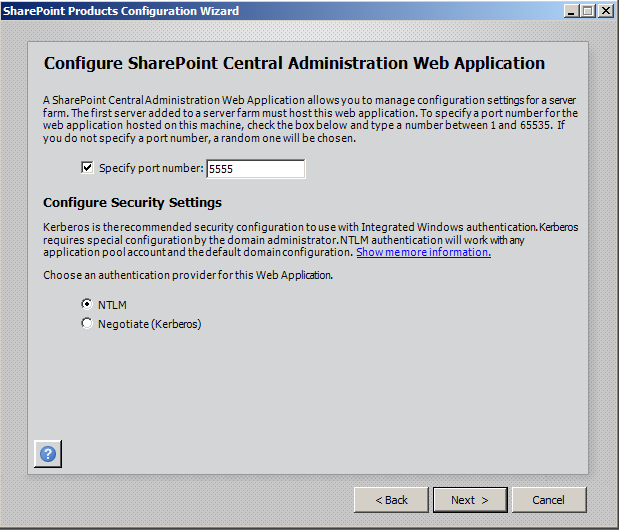
The next screen I specified SharePoint Central Administration Web Application and click the "Next" button.


The summary screen will be displayed and SharePoint will installed.


By having separate SharePoint Server and SQL Server increases the scalability of the SharePoint farm.  


Cheers, 
--Aaroh 
References: 


Low Code Reimagined with AI + Copilot Pitch Deck - Copy Copilot day (Virtual) - 2023

 Hi All,  I presneded a session at Pune UG on Low Code Reimagined with AI + Copilot Pitch Deck.  Video is at this address  https://www.youtu...