Hi All,
I always wanted to create a demo topology for a multiple SharePoint Server 2010. In corporate environments, we mostly have three tier architecture consisting of application tier, web front end tier and data tier. In my demo environment, I have created a two tier topology as follows:
1) SharePoint Server 2010: named SP2010WFE1 with the domain controller (AD), SQL Server 2008 R2 SP1
2) SharePoint Server 2010: named SP2010 WFE2 with the same SQL Server 2008 R2 instance as SP2010WFE1.
In my previous blog posts I have mentioned that setting up a single server for SharePoint 2010 farm with AD, SQL Server in a single box is quite easy. However, if you try out to install a separate box, things could become complicated. There are quite a few prerequisites as follows:
I tried following virtualization options:
A) VirtualBox Configuration:
Note: YouTube has excellent videos on setting up VirtualBox
i) VirtualBox Tutorial 1
ii) VirtualBox Tutorial 2


I created two Windows Server 2008 R2 SP1 instances:
1) SP2010 WFE1 with SQL Server 2008 R2 SP1
2) SP2010 WFE2 that work simultaneously as follows






We will get a log in credentials windows.


Now are we connected with the same domain.
F) Run the SharePoint 2010 products configuration wizard.
Step1: Run the the PSConfig on the SP2010WFE2. We have to provide the database server and database account.
Step2: Next screen we are prompted about which server farm we want to connect to as illustrated below:


I hope this two tier SharePoint Server 2010 setup helped you.
Cheers,
--aaroh
References:
1) YouTube: Adding a Client to a Server Domain
2) Cannot enable Network Discovery on Windows Server 2008 R2
I always wanted to create a demo topology for a multiple SharePoint Server 2010. In corporate environments, we mostly have three tier architecture consisting of application tier, web front end tier and data tier. In my demo environment, I have created a two tier topology as follows:
1) SharePoint Server 2010: named SP2010WFE1 with the domain controller (AD), SQL Server 2008 R2 SP1
2) SharePoint Server 2010: named SP2010 WFE2 with the same SQL Server 2008 R2 instance as SP2010WFE1.
In my previous blog posts I have mentioned that setting up a single server for SharePoint 2010 farm with AD, SQL Server in a single box is quite easy. However, if you try out to install a separate box, things could become complicated. There are quite a few prerequisites as follows:
ü
The servers should be in the same domain.
ü
Static unique IP addresses for each server.
ü
Network discovery should be enabled for each
server.
ü
Local administrative rights on each server.
I tried following virtualization options:
- VMware player - Its good for single server set up. We can use vSphere which is a FREE tool to manage different servers. But I found it quite complex to set up vSphere Hypervisor.
- VirtualBox: I tried VirtualBox which is from Oracle. Its much simpler and very straightforward.
A) VirtualBox Configuration:
Note: YouTube has excellent videos on setting up VirtualBox
i) VirtualBox Tutorial 1
ii) VirtualBox Tutorial 2
- Download the latest VirtualBox from this link and choose Windows Hosts
- The SetUp will kick in as follows:


I did not face any Network Interfaces though during the setup.


1) SP2010 WFE1 with SQL Server 2008 R2 SP1
2) SP2010 WFE2 that work simultaneously as follows

It is important to Install Guest Additions on both the machines via Devices >> Install Guest Additions. Its very similar VMware tools.

When I created a new machine instance such as SP2010 WFE1, I normally do the following:
a) Install Guest Additions. It will ask for server reboot and ignore it.
b) Rename the machine name such as SP2010WFE1. It will ask for server reboot and ignore it.
c) Change the current time zone. and then I reboot the machine.
The guest additions install the video & mouse drivers and re-size to full screen.
B) Setting up the Active Directory
I setup the SP2010 WFE1 as the Active Directory Domain controller. Please follow the previous blog posts and steps which are exactly same.
For installing SQL Server 2008 R2 & SharePoint Server 2010, navigate to the Devices >> Shared Folders

and add the Share where SQL Server 2008 & SharePoint Server 2008 ISOs are stored.

and check Auto-mount, Make Permanent options.
Please ensure the that your network adapter is connected to NAT as illustrated below:

Its of paramount importance because SharePoint 2010 Prerequisites requires Internet connection. We will cover networking in later steps.
i) How to: Install and Configure SharePoint 2010 - Part 1 (AD installation and SharePoint Accounts)
ii) How to: Install and Configure SharePoint 2010 - Part 2 (SQL Server 2008 R2 & SharePoint Server 2010 installation)
On the second machine SP2010 WFE2, and perform following actions:
a) Install Guest Additions. It will ask for server reboot and ignore it.
b) Rename the machine name such as SP2010WFE2. It will ask for server reboot and ignore it.
c) Change the current time zone. and then I reboot the machine.
C) Networking
I researched for at least 8-10 days about how to connect two servers. I read basic networking concepts and watched numerous videos but neither documentation nor videos helped me. In lot of videos people have described basics of DNS, DHPC etc. But one of YouTube videos actually helped me what I intended to do.
Firstly, setup SP2010 WFE1 server and perform following steps:
Step1: Control Panel >> Change adapter settings >> Right click on "Local Area Connection contoso.com" >> Properties >> Select Internet Protocol Version 4 >> Properties >> Type in:

IP
Address: 192.168.10.5
Subnet mask: 255.255.255.0
Preferred DNS server: 127.0.0.1
Subnet mask: 255.255.255.0
Preferred DNS server: 127.0.0.1
Step2: Change the Network Adapter by going to Devices >> Network Adapter >> Attached to: "Host-Only Adapter". and
Step3: Restart the SP2010 WFE1.
Step4: Another frustrating roadblock which I ran into is that I have to turn on network discovery so that the second server (SP2010 WFE2) could detect it. Whenever I turn on the network discovery on the SP2010 WFE1 and click in "Save Changes", and try to turn the network discovery it was never turned on.
Finally I found a helpful tip from a blog.
On the SP2010 WFE1, navigate to services.msc and active following services:
>> Function Discovery Resource Publication and make the service Automatic
>> SSDP Discovery and make the service Automatic.
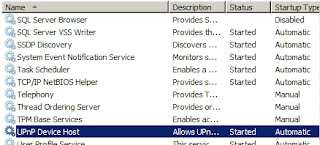
>> UPnP Device Host and make the service Automatic.


Control Panel >> Change advanced sharing settings >> Turn on Network Discovery for "Home or Work", "Public" and "Domain profiles" and hit the "Save changes".
D) Adding a second SP2010 web front end
Step1: Switch to SP2010WFE2 server and Install SharePoint Server 2010 by navigating to the Devices >> Shared Folders
and SharePoint Server 2010 ISOs are stored.
and check Auto-mount, Make Permanent options.
Please ensure the that your network adapter is connected to NAT as illustrated below:
Its of paramount importance because SharePoint 2010 Prerequisites requires Internet connection. Click on "Server Farm" as we are connect this server to SP2010WFE1

Step2: On the second screen of the wizard, choose "Complete".

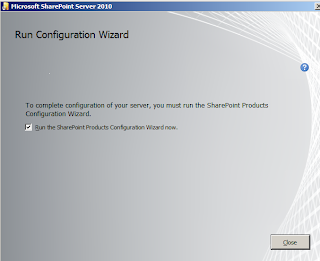
Step3: The SharePoint Server 2010 on the SP2010WFE2 kicks in:

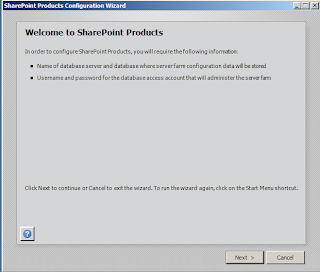
Step3: We will get SharePoint 2010 configuration wizard as illustrated below:

At this step we have to disconnect the Internet connection and perform following steps:
Step4: Control Panel >> Change adapter settings >> Right click on "Local Area Connection contoso.com" >> Properties >> Select Internet Protocol Version 4 >> Properties >> Type in:

IP Address: 192.168.10.3
Subnet mask: 255.255.255.0
Preferred DNS server: 127.0.0.1
Subnet mask: 255.255.255.0
Preferred DNS server: 127.0.0.1
Lets ensure we are able to connect to SP2010 WFE1

Step5: Change the Network Adapter by going to Devices >> Network Adapter >> Attached to: "Host-Only Adapter"
Step6: Restart the SP2010 WFE2.
Step7: On the SP2010 WFE2, navigate to services.msc and active following services:
>> Function Discovery Resource Publication and make the service Automatic
>> SSDP Discovery and make the service Automatic.
>> UPnP Device Host and make the service Automatic.
Control Panel >> Change advanced sharing settings >> Turn on Network Discovery for "Home or Work", "Public" and "Domain profiles" and hit the "Save changes".
E) Connect two servers together:
On the SP2010 WFE2 server I connected to contoso.com domain.
On the SP2010 WFE2 server I connected to contoso.com domain.
Step1: Right click on "Computer"
Step2: Click on the "Advanced system settings"
Step3: On Computer Name tab, click on "Change" button to change the domain. Type in "contoso.com"

We will get a log in credentials windows.


F) Run the SharePoint 2010 products configuration wizard.
Step1: Run the the PSConfig on the SP2010WFE2. We have to provide the database server and database account.
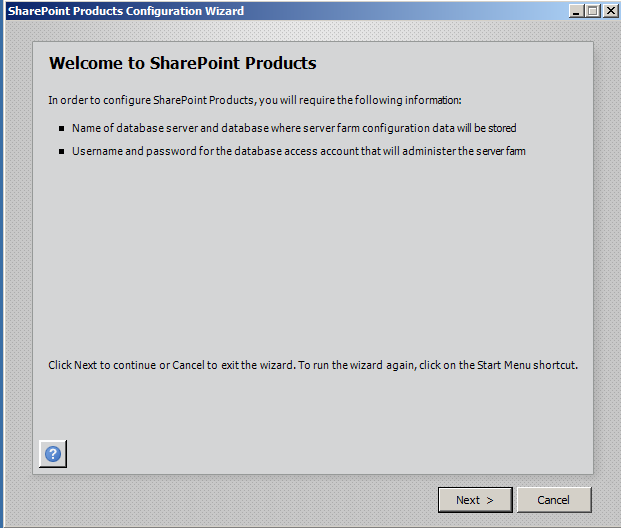
Step2: Next screen we are prompted about which server farm we want to connect to as illustrated below:

Step3: Provide the database server. Type in "Database server" and click on "Retrieve Database Names" and database name would be automatically populated.

Step4: Provide the Farm Security Settings. I have entered sp2010!sp2010!. and click on "Advanced Settings"


Step5: In the Advance Settings option, check the "Use this machine to host the web site" and complete the SharePoint Products Configuration wizard. The configuration will start as shown below.


Step6: Navigate to SP2010 WFE1's Central Administration & we are able to view two server connected in this two tier farm.

Cheers,
--aaroh
References:
1) YouTube: Adding a Client to a Server Domain
2) Cannot enable Network Discovery on Windows Server 2008 R2


