Sunday, August 30, 2015

SharePoint 2016 Installation IT Preview

Hi All,

SharePoint Server 2016 IT preview has launched on 24th Aug 2015 and this version comes with a lot new infrastructure capabilities and performance improvements. There are couple if useful links that you can follow:

1.       Here are the Hardware and software requirements for installing SharePoint Server 2016.
2.       Know issues with SharePoint Server 2016 IT Preview

3.       What’s new in SharePoint 2016
a.       UI is same as SP2013
b.      Better mobile features
c.       InfoPath is supported.
d.      SharePoint Designer 2013 works with SP2016. 
e.      Workflow manager supported in SP2016.
f.        Sandboxed solutions supported in SP2016.
g.       Different roles while setting up SharePoint Server (WFE, Application, Distributed Cache, Search, Special load, Single Server)
h.      Major one: Content Databases seized to TBs and not GBs.
i.         100 K site collections per Content DB from 10K from SP2013.
j.        Max file size to 10 GB from 2 GB from SP2013.
k.       Improved distributed cache (App Fabric).  App Fabric is announced to be discontinued already as a standalone product but the product group will continue to support it as a component part of SharePoint.
l.         Improved directional sync with ADFIM (Forefront Identify Manager) product is removed from the SharePoint media (Install). Added support for external standalone FIM product\service.
m.    Microsoft Project Server 2016 (PWA) is now part of the SharePoint product but separate license.
n.      Added a new site collection template calledCompliance Policy Center”.
o.      Added a new Site collection template called “In-Place Hold Policy Center
p.      Introduced Fast Site Creation, SharePoint will leverage master copies for common site templates (I.e. STS0) to do a SPSite. Copy at the content DB level to speed up site collection creation. SP16 takes 1 seconds in contrast 40 seconds in SP13.
q.      Durable links
r.        Site Folders

My Setup is as follows:


1.       


1.       Operating System : Windows Server 2012 R2 (64 Bit)
2.       SQL Server: SQL Server Trail Version (64 Bit)
3.       SharePoint Server: SharePoint Server 2016 IT Preview (64 bit)
4.       VM: VMWare Workstation 10 with 6 GB  RAM


Setting up SQL Server 2014 

The SQL Server setup is very similar which I have detailed in my previous blog. So I will just provide the required s
creenshots


While setting up SQL Server 2014, I received the following above error.
Microsoft .NET Framework 3.5 Service Pack 1 is required. 

Essentially, the Windows Server 2012 R2 ISO has already has .NET FX 3.5 features. So, I changes my VM settings and switch back to Windows Server 2012 R2 ISO.
Checked .NET Framework 3.5 features are selected in the Add Roles and Features wizard as below


.   

After a while the .NET Framework 3.5 features is configured in Windows Server 2012 R2 environment.   


The .NET FX 3.5 is installed successfully. 


I again load up SQL Server 2014 ISO to continue. 


In the Database Engine Configuration, add the current user i.e. contoso\administrator and add SharePoint installation account contoso\sp_admin as above screenshot. 


We need to grant SP_Admin (or SP_Install) account with above permissions on SQL Server Database. 

Installing SharePoint Server 2016 IT Preview

Basically the SharePoint Server 2016 installation is quite similar to SharePoint Server 2013 and SharePoint Server 2010. However, there are couple of changes that I will walk-through in this step by step guide.  

Step1: Mount SharePoint Server 2016 IT Preview. 
Step2: The Installation of SharePoint Server 2016 IT Preview is very similar to SharePoint 2013 and 2010. It comes with software prerequisites and then we need to install the SharePoint Server.   


 Click Next to continue.


As previous version SharePoint 2013 requires multiple server reboots.The same multiple server happens in SharePoint 2016 server as well. With any server reboot the installation will pre-requisites run automatically.  After couple of reboots the following screen will be shown:


The Next step will configure SharePoint Server. For IT Preview the following product key can be used, NQTMW-K63MQ-39G6H-B2CH9-FRDWJ


Following default settings as shown: 


The SharePoint Product Wizard 


The SharePoint product configuration wizard shows the welcome screen page as shown:


 The following services may have to be started or reset during configuration:

Internet Information Services
SharePoint Administration Service
SharePoint Timer Service
Click Yes and proceed. 


The next screen shows how we connect to farm. As its our first farm, we select on Create a new server  farm. 
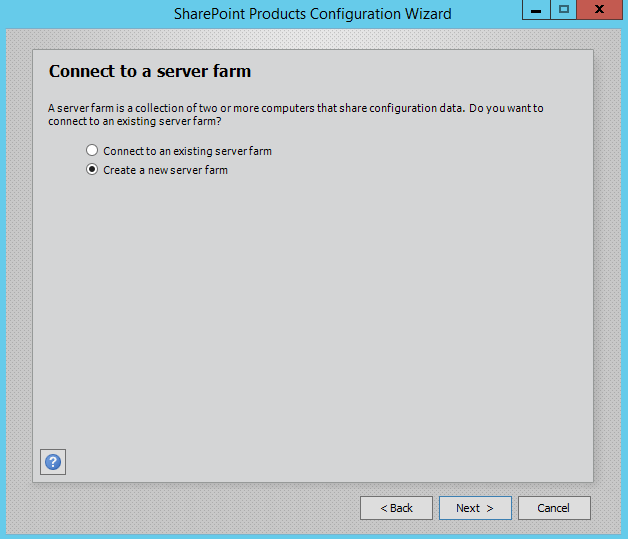


Our SharePoint Server farm is single server farm with SQL Server 2014 as back-end, provide the following settings

Database Server: SP16
Database name: SharePoint_FarmConfig

For the Database access account, the best practice is set this account as farm account. It will automatically grant permissions to SQL and timer job identity.      


Provide a strong Passphrase  


This following setting is the key differentiator. SharePoint 2016 comes with something called as Server role or   MinRoletopology. Basically, in previous versions of SharePoint, there is no clear role for a specific roles that SharePoint can be assigned to.

For an instance, Application and Front end can be same server in multiple server environment.If server has only Microsoft SharePoint Foundation Web Application it means its a Web Front End. 

Similarly, if you want to have a dedicated distributed cache server or a dedicated search server, you need to enabled the services manually to make the server DC or search server. 

In SharePoint 2016, we can install a specific role. In this way, it will install the what is required for each server role. It will make ensure that all SharePoint 2016 servers are compliant for that server role.    

For e.g. 

During the installation, you can build a new SharePoint Front-end server. This role will front-end will have all the necessary services applications, services & components that serve user requests and optimized for fast performance as shown below:


Similarly, you can have dedicated distributed cache role and SharePoint will provision all necessary services applications, services & components required for Distributed cache server as shown below. 


As I have setup a single -server farm, I chose Single-Server farm and click on Next to proceed.

The remaining steps are similar to SharePoint Server 2013 setup. So I will provide the screenshots


Provisioning a new web application and site collection is exactly same as in SP2013. However, SharePoint 2016 has two new site template


  • In-Place Hold Policy Center 
  • Compliance Policy Center


After creating a site collection, a document library Sync is provided. The Offline is provided by this functionality as shown:


Furthermore, for sharing document an mobile device is provided and clicking on the document, a QR is generated.


In Central Administration, click on Manage Server and you can two additional columns.
First is the Role which defines what type of is assigned to this server. A I created a Single-Server Farm, this option is listed.
Second is the In Compliance,  and SharePoint server has in-built rules if server is in compliance


Keep visiting the blog for more updates
--Aroh

Sunday, January 11, 2015

How I passed SharePoint 2013 Exams - 70-331 and 70-332

Hi All,

I wrote the SharePoint 2013 exams and want to share my experience. My study plan was as follows:

a) Study plan:
Purchased the CBT nuggets for 70-331 and 70-332 from company’s books and DVD study programme for employees. However, I found that somebody has uploaded a few videos on YouTube now.

b) Exam Preparation:
Studied the CBT nuggets and took notes so that I could view them when I travel in Metro. For 70-331 it took me around 3 months and 70-332 took 1 month.

c) My SharePoint technical background.
I am working on SharePoint since 2008 with SharePoint Server 2007 and 2010 versions. I have SharePoint development experience in SharePoint 2007 and SharePoint 2010.

I have around 4 years SharePoint Administration and Infrastructure design (SharePoint 2010 and SharePoint 2013). I have passed SharePoint 2010 development and configuration 2 years back.      
Microsoft has engaged a company called Grandmasters to write SharePoint exams. Earlier Microsoft SharePoint exams (SharePoint 2010 and 2007) were relatively easy. And it is very true. When I wrote SharePoint 2010 Development and configuration, it was mostly multiple type questions with 50 to 55 questions.

However, the SharePoint 2013 are NOT BEGINNER exams anymore. It is tougher than previous SharePoint exams. Microsoft expects us to have at least 4 years of SharePoint experience.  Furthermore, we should be knowing the Windows Server 2012 three exams and then write two SharePoint 2013 exams.  

d) Writing Exams. 
In year 2014, we could write SharePoint 2013 using Prometric. However, from 1 Jan 2015 onwards Microsoft has given to Presonvue.

e) Practice, Practice, Practice
Bear in mind that these exams are tougher than you expect. Build a virtual machines with Windows Server 2012/2008 R2 and SharePoint 2013 Enterprise trail versions. It is absolutely essential that we know all nitty gritty of SharePoint 2013. Without virtual machines, it’s extremely difficult to pass these exams. 

f) References:
I referred to following blogs for my study besides CBT Nuggets:
Borntolearn Blog and SharePoint-Community blog


1.       Exam 70-331
The exam has a couple of case studies and questions could be from any sections from skills measured in the exam.
When I wrote the exam, the exam started with 2 case studies each with 6 questions and a mix of 43 questions. The questions types are of different types: drag drop, screen capture, PowerShell cmdlets etc. 

The CBT Nuggets for SharePoint 2013 for 70-331 is an excellent resource and give a good heads up about exam. It comes with a couple of sections the author gives an exam alert. These hints give useful and extremely for real life SharePoint administration which I have implemented in our company as well. It would be beneficial as the CBT nuggets might not help you alone. This is my honest opinion. Please look for sample questions over Internet so that you are armed with type of questions.
70-331 focus on SharePoint online and Office 365

The CBT nuggets for SharePoint 2013 for 70-332 is again resources and you can expect a few questions as exam alert.

a.       Interactive questions: where a lot of actions are assigned and we need to perform them in sequence.  (8-10 questions)
b.      Drag and drop: (10-14 questions). I found it most tough as questions asks to steps on sequence. Even if a step is missed, the question becomes incorrect.
c.       Part of Central Administration screen capture and we need to answer the specific area. (5-7 questions)
d.      PowerShell cmdlets and especially in search and user profile service application. It’s not required to memorize but usage is and parameters are important. 
e.      Cross-forest authentication, AD FS 2.0, AD FS 2.0 Proxy (Windows Server 2012 70-412 topic)
a question came for cross-forest authentication.  
f.        DNS and Firewall (80, 443, SQL Server 1434) concepts (Windows Server 2012 70-410)
a question about the network firewall in a drag drop type.
g.       Monitoring  : Event level (warning, Information, Verbose) and Trace level (Monitorable,  verbose, Developer Dashboard, Diagnostic logging
4-5 questions in monitoring as case study, developer dashboard etc.
h.      Permissions: 3-5 around questions  
i.        Anti-virus.
A question on Anti-virus.   
j.        Storage suggestions (RAID 5, RAID 10).
A couple of questions on storage multiple type questions and interactive type questions.    
k.       Question on minimum number of content database required
l.        AAM with internal and external URLs . 

2       Exam 70-332

a.       5 Case studies (one with 6 questions, interlaced with 43 mixed questions and four case studies with 4 questions each afterwards). Total number of questions were 65.
b.      No focus on SharePoint Online and primarily on On-Premises SharePoint Environment.
c.       Again you can expect similar kind of questions such as drag-drop, interactive questions, part of SharePoint Central Administration, PowerShell scripts.
d.      Many questions on migrate SharePoint 2010 to SharePoint 2013. One case study asked about steps and also mix type questions such as drag drop. It very important topic.
e.      No networking, firewall concepts questions asked but storage requirements were asked. The questions are tough and needs a through understanding of concepts. 

Wish you all the best!
--Aaroh 


Thursday, June 6, 2013

0x8107058a Feature XXX for list template ’10005′ is not installed in this farm. The operation could not be completed.

Hi all,

I was looking for a solution which provides Room Booking System where users could choose a specified room, date and time. Furthermore, the solution prevent double booking if some other user books the same room at the same time.

I looked for some third party solutions (Infowise Soltions ($2999), Room Manager ($1490)  and they were quite good. But they provided some extra functionality such as color code within the SharePoint Calendar that was not required by our organization. After, further research I found a free Codeplex solution: SPResourceBooking. I tried the solution on my demo machine and somehow messed up during the activating on SharePoint 2010 environment.

I got following bug:

Bug! 


Error

<nativehr>0x8107058a</nativehr><nativestack></nativestack>Feature XXX for list template ’10005′ is not installed in this farm.  The operation could not be completed. 

As we know that COM objects errors are quite tricky to decode. I discovered that a few users have same issue (NOT with this CodePlex solution) but in general. I downloaded the source code of the this WSP and found they use Site Template to make it work.

In my previous blog post, I had some kind of issue where I had some list which didn't work and I removed using STSADM command line to remove this list. Thus, I tried to attempt the in this scenario.

FIX:

I used STSADM command. The syntax is:

                    stsadm.exe -o forcedeletelist -url <url>

For e.g. this "Resources" was somehow got corrupted and just fire up this command.
stsadm -o forcedeletelist -url http://sp2010/KWSResources as illustrated below
    

Remove the KWSResourceBooking.wsp from the Solution Store, and redeploy again. It worked fine me at the end.

I hope it helps someone.

cheers,
--aaroh  

Sunday, February 3, 2013

The column name you have entered is already in use or reserved. Choose another name

Hi All,

Scenario: 

I was working for a business requirement where an "Event" has to be used and year, status are required including other fields. Furthermore The "Event" has to used in nearly 8-10 places across sites as well. Therefore I decided to design a site content type for this business requirement so that it can be used for all 8-10 sites. I created a new "Site Content Type", create a new group as "Custom Events"  as illustrated below:


Navigated to Site Actions >> Site Settings >> Site content types >> Custom Events as illustrated below

Clicked on "Events" and create a new site column "Year", column type is "Choice" Field Type and entered the choices

Created a New group named "Events"


and clicked on OK button. 

Issue: 

I bumped into an error: 

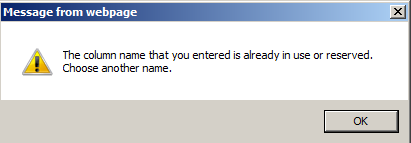
Error: The column name that you entered is already in use or reserved. Choose another name
I researched and found that this field "Year" (or Status) field belongs to the "_Hidden" group in the SharePoint Object Model MSDN and thus its not shown up SharePoint User Interface. The business doesn't want to deal with any SharePoint custom development and strictly using SharePoint out of the box features. My options were limited.

Fix: 

Step1: Navigate to the Site Actions >> Site Settings >> Site content types >> Custom Events >> Events (Content Type)

Step2: In the "Events" Content Type, from the "Add from new site column" hyperlink, "Open in new tab" option as shown below:


Step3: Type in the "Year" (which belongs to _Hidden Group)


Step4: On the browser type in following Javascript: 
javascript:g_FieldName={};alert('Successfully cleared forbidden columns'); 


I have to firstly run the javascript mentioned above and hit enter to get the javascript alert. 

Click the "OK" button. 


Step5: I followed the similar steps for "Status" field as well


Step5: On the browser type in following Javascript: 
javascript:g_FieldName={};alert('Successfully cleared forbidden columns'); 


Click the "OK" button.

A new Custom Content Type with our own Year and Status could be defined on this manner.


I hope it helps.

References:
1) SPList.Hidden property
2) Paul Galvin Blog 
3) Jack's Blog 

Low Code Reimagined with AI + Copilot Pitch Deck - Copy Copilot day (Virtual) - 2023

 Hi All,  I presneded a session at Pune UG on Low Code Reimagined with AI + Copilot Pitch Deck.  Video is at this address  https://www.youtu...