Hi All,
In my previous blog post, I have described about how to set up a two tier SharePoint 2010 farm by providing an additional web front end. Spence Harbar has written an extremely informative article about SharePoint's high availability, network load balancing (NLB) & recommended to have Central Administration on more than one server in the farm.
The main purpose of NLB is to provide high availability to the SharePoint 2010 farms so that the web front load is distributed. I wanted to learn how the NLB feature of Windows Server 2008 R2 functions and hence this post. As a I have limited knowledge of Windows NLB feature, I read MSDN documentation and watched a couple of screen casts on YouTube. One of the YouTube videos had been very useful. I watched the complete video and PowerPoint presentation was indeed good resource for me. These are the excerpts of his presentation.
--------------------------------------------------------
Basics of NLB
What is load balancing?
Port rules define:
>> Filtering mode
>> Affinity
>> Load weight
>> Handling priority
------------------------------------------------------------------------
Scenario:
NLB is a feature installed on any Windows Server 2008 system and optimized for IIS. It provides basic level of software load balancing. The scenario is that we have 2 or more web fronts (SharPoint 2010 farm) with two or three IPs that participates in load balancing and create a single virtual IP to our users and NLB decides which web front would serve the users via priority. NLB reduces the load on a web front end & provides quality of service to users.
 In this topology above two servers, SP2010WFE1 and SP2010WFE2 and we will install NLB feature at both the machines. We present to our users a single virtual server with host name to Portal and IP address of 192.168.10.10.
Step1: Adding NLB feature
Add NLB feature at both SP2010WFE1 & SP2010WFE2 as NLB feature has to installed on both the machines.


Step2: Creating the cluster
Navigate to Start >> Administrative Tools >> Network Load Balancing Manager on SP2010WFE1 server & right click to create "New Cluster"



Click the "Finish" button and kept the default settings.

Note: Normally in the production environment, we have to limit this because only NLB nodes should be participated. Thus, we can customize the port rules for the production environment. In my example I have only two nodes, i.e. SP2010WFE1 and SP2010WFE2, so I keep it default settings.
Now, we add the second server (SP2010WFE2).

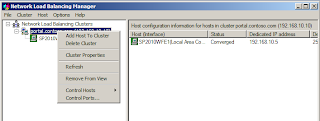
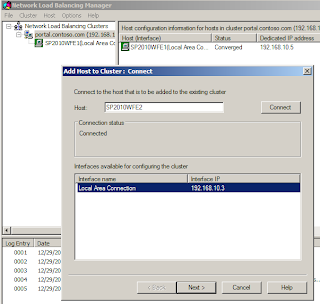
I put this server's priority to 2.


We now switch to SP2010WFE2 server and we will observe that both the cluster nodes have been automatically converged. Please note it will take some time to converge the nodes.

Step4: Creating a DNS entry
Create "A record" in the SP2010WFE1 server within the "Forward Lookup Zones" and type in:
Name: portal
IP Address: 192.168.10.10 (virtual IP address)

Step4: IIS Settings
On the IIS manager, right click on "SharePoint - 80" web application >> Edit Bindings >> Add a new host name.


Step6: Logging into SharePoint Central Administration
Navigate to SharePoint 2010 Central Administration >> System Settings >> Configure alternate access mappings, choose correct web application and under "Default" zone type in: http://portal/

and punch in the http://portal.contoso.com


I hope this blog post help you.
Cheers,
--aaroh
References:
1) Clustering and High-Availability (MSDN)
2) Network Load Balancing Windows Server 2008 ( YouTube: Arabic)
3) How to Setup Load Balance in SharePoint 2010 Farm
4) SharePoint Central Administration: High Availability, Load Balancing, Security & General Recommendations (Harbar)
Disable loopback check
4) SharePoint disable loopback check
5) DisableLoopbackCheck & SharePoint: What every admin and developer should know. (Harbar)
6) Disable the loopback check (MDSN)
In my previous blog post, I have described about how to set up a two tier SharePoint 2010 farm by providing an additional web front end. Spence Harbar has written an extremely informative article about SharePoint's high availability, network load balancing (NLB) & recommended to have Central Administration on more than one server in the farm.
The main purpose of NLB is to provide high availability to the SharePoint 2010 farms so that the web front load is distributed. I wanted to learn how the NLB feature of Windows Server 2008 R2 functions and hence this post. As a I have limited knowledge of Windows NLB feature, I read MSDN documentation and watched a couple of screen casts on YouTube. One of the YouTube videos had been very useful. I watched the complete video and PowerPoint presentation was indeed good resource for me. These are the excerpts of his presentation.
--------------------------------------------------------
Basics of NLB
What is load balancing?
System that increases the scalability
& high availability of
the servers that provide access to data.
Other NLB methods:
Other NLB methods:
· >> A virtual IP address (VIA) is used to distribute
requites between multiple severs
· >> Not suitable for all applications
What is Windows NLB?
· >> Is a fully distributed software solution for
load balancing
>>Is included with all versions of Windows Server
2008
Requirements for Windows NLB:
· >> At least one network adapter for load balancing
· >>Only TCP/IP on the NLB adapter
· >> All NLB nodes on the same subnet
What are port rules?
Specify how requests to a certain IP address & port range are handled. Port rules define:
>> Filtering mode
>> Affinity
>> Load weight
>> Handling priority
What is the filtering
mode?
Filtering mode
|
Description
|
Single Host
|
Only the NLB node with the highest priority responds
|
Disable this port range
|
All traffic for this port range is blocked
|
Multiple hosts
|
All NLB nodes respond based on the weight assigned to
each node.
|
What is affinity?
Affinity controls how requests from a client are distributed
among multiple nodes in an NLB cluster
Affinity
|
Description
|
None
|
Each client request could be distributed to any node
|
Single
|
All requests from a single client are distributed to a single node
|
Network
|
Directs clients requests to the closest node on the basis
of subnet
|
Scenario:
NLB is a feature installed on any Windows Server 2008 system and optimized for IIS. It provides basic level of software load balancing. The scenario is that we have 2 or more web fronts (SharPoint 2010 farm) with two or three IPs that participates in load balancing and create a single virtual IP to our users and NLB decides which web front would serve the users via priority. NLB reduces the load on a web front end & provides quality of service to users.

Step1: Adding NLB feature
Add NLB feature at both SP2010WFE1 & SP2010WFE2 as NLB feature has to installed on both the machines.


Step2: Creating the cluster
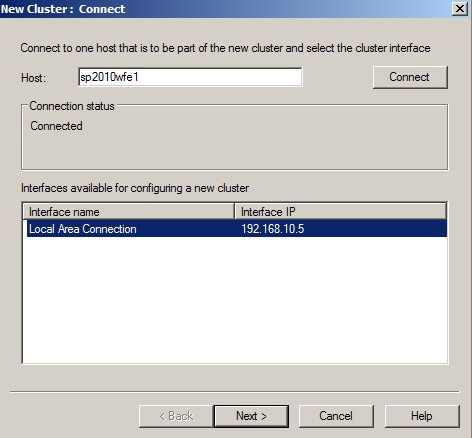
Navigate to Start >> Administrative Tools >> Network Load Balancing Manager on SP2010WFE1 server & right click to create "New Cluster"

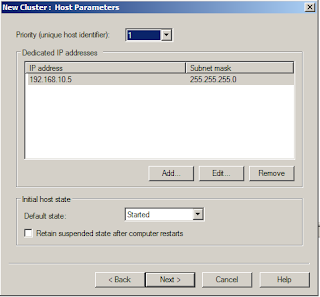
The Host would be the first server i.e. SP2010WFE1
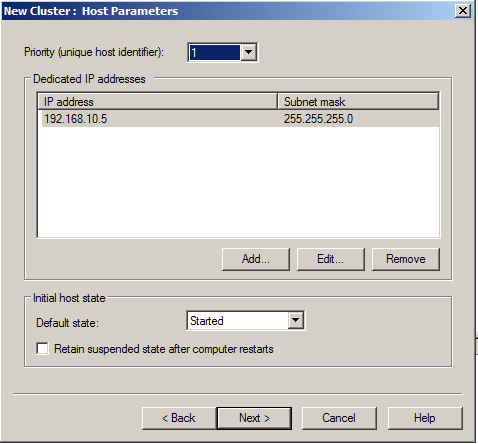
The Priority would be first server.
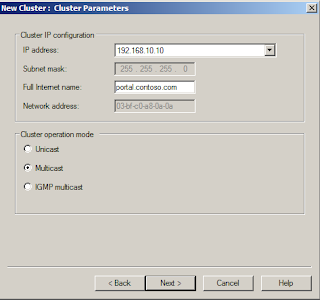
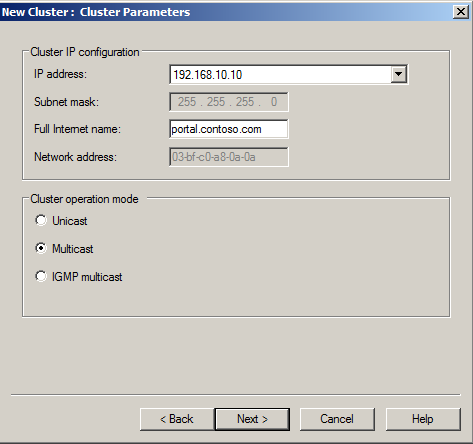
Now we set up the cluster which is called as virtual IP address (VIP). The IP address that is NOT taken and we cant use SP2010WFE1 and SP2010WFE2. It should be unique. I created a new IP address 192.168.10.10 as the cluster IP address.

In the cluster IP configuration, I supplied full internet name as portal.contoso.com (I will create a DNS entry in the later step) and in the cluster operation mode to be Multicast.

Note: Normally in the production environment, we have to limit this because only NLB nodes should be participated. Thus, we can customize the port rules for the production environment. In my example I have only two nodes, i.e. SP2010WFE1 and SP2010WFE2, so I keep it default settings.
Now, we add the second server (SP2010WFE2).


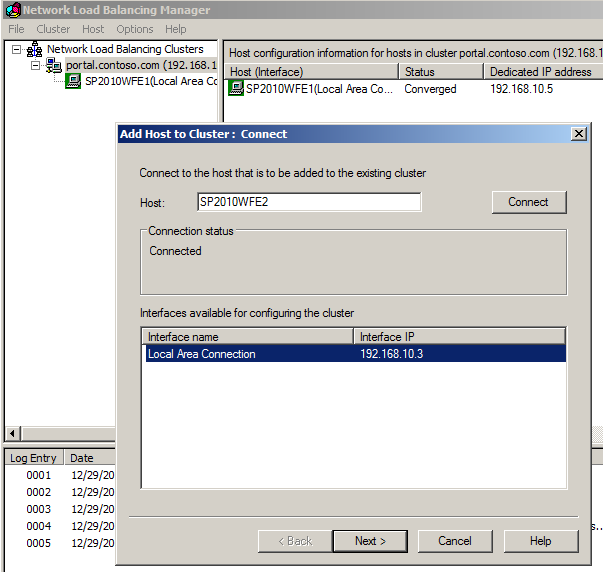

Its waiting time for both the nodes to be converged and keep refreshing the NLB manager till both the nodes are converged.


Step4: Creating a DNS entry
Create "A record" in the SP2010WFE1 server within the "Forward Lookup Zones" and type in:
Name: portal
IP Address: 192.168.10.10 (virtual IP address)

Step4: IIS Settings
On the IIS manager, right click on "SharePoint - 80" web application >> Edit Bindings >> Add a new host name.


Perform IIS at both machines by navigating Run >> cmd (prompt) >> IISRESET
Step6: Logging into SharePoint Central Administration
Navigate to SharePoint 2010 Central Administration >> System Settings >> Configure alternate access mappings, choose correct web application and under "Default" zone type in: http://portal/


I tried the administrator log in credentials numerous times but my attempts went in vain. I again researched and tried to make NLB cluster working. I found that from different blog posts about the same issue and found a workaround.
Step7: DisableLoopbackCheck on Windows Server 2008 R2 server.
What is the issue?
Windows Server 2003 SP1 and Windows Server 2008 introduced a loopback security check according to Spence Harbar & mentioned that its a Microsoft security feature. Please refer to his blog about more details.
Even I faced the same issue when I typed in the http://portal.contoso.com and constantly prompted for the username and password. There is Microsoft KB article 896881 and I followed Method 2. It fixed the issue for me.
Step8: Failover
For testing the NLB cluster, I navigated to SP2010WFE1 server and stopped the server.

I was able to browse both at SP2010WFE1 & SP2010WFE2.

If I stopped both the nodes, I was not able to browse at either of SharePoint Web Front Ends.

Cheers,
--aaroh
References:
1) Clustering and High-Availability (MSDN)
2) Network Load Balancing Windows Server 2008 ( YouTube: Arabic)
3) How to Setup Load Balance in SharePoint 2010 Farm
4) SharePoint Central Administration: High Availability, Load Balancing, Security & General Recommendations (Harbar)
Disable loopback check
4) SharePoint disable loopback check
5) DisableLoopbackCheck & SharePoint: What every admin and developer should know. (Harbar)
6) Disable the loopback check (MDSN)