Monday, August 9, 2010

Taking a crash course in LINQ - Part 2 (LINQ to DataSet)


Hi all,

We know that LINQ dramatically simplifies the data access layer with an array of other benefits which I discussed in the previous post. ADO.NET is a bridge between our objects in ASP.NET and our database. ADO.NET provides an object oriented view to the database, encapsulating many of the database properties and relational within ADO.NET objects.

ADO.NET architecture diagram comes with connected (SqlConnection, SqlCommand, SqlDataReader, SqlBulkCopy, SqlDataAdpater etc.) and disconnected architecture (DataSet, DataTable etc).In this blog post, we will talk about LINQ to DataSet which is a disconnected architecture. These ADO.NET dataset and datatable are quite sophisticated objects and data tables is an iterative process through collections of rows and columns. 

Advantages: 
These ADO.NET object are extremely powerful and in development context, there are quite easy to develop.

Disadvantages: 
 1. DataSet objects do not expose rich query capabilities. Therefore developers have had to live with DataSet's limited query mechanism such as simple string operations for sorting and filtering which lead to a lot of extra work and custom applications.    
2. Neither DataSet nor DataSet implements either IEnumerable<T> or IQueryable<T>.

LINQ to DataSet: (For Developers)


LINQ to DataSet lets us use the standard query operators and some operators that are specific to datasets and data tables. It treats data tables as enumerations of DataRow objects.It doesn’t care how data gets into a dataset.

a) Provides a consistent model for querying data irrespective of  different data sources.
b) Write .NET Framework code rather than of SQL when working with data.
c) Compile-time syntax against our data.   
d) Making programming data easier and more consistent
e) Intellisense
f) Unfortunately, the DataSet’s DataTable and the DataTable’s DataRowCollection do not implement IEnumerable<DataRow> so these types cannot be used as sources for LINQ query expressions. This means, we cannot query a DataSet in the same way we would query a database.  

AsEnumerable: 

LINQ leverages IEnumerable<T> sources.  .But there is a workaround and LINQ provides an extension method called "AsEnumerable"  and its added to DataTable type.

Field<T>: 
We can use the DataRow column values via the Filed<T> method when developing LINQ to Data Set query expressions. This facilitates the query expression less error prone and thereby provides much cleaner code.  

So, lets take a sample of LINQ to DataSet.Firstly, we will discuss typed DataSet and in second sample we will discuss Untyped DataSets. 

-------------------------------------------------------------------------------------
LINQ to DataSet (Typed) 

Step1: Create a new Visual Studio 2008/2010 project, File >> New >> Project >> Select "ASP.NET Web Application" and name the project: "LINQtoDataSet"
Step2: Right click on the "LINQtoDataSet" project >> Add >> New Item >> Select "Data" from installed templates >> Select the "DataSet" item and name it "Customers". We now have a Typed DataSet.


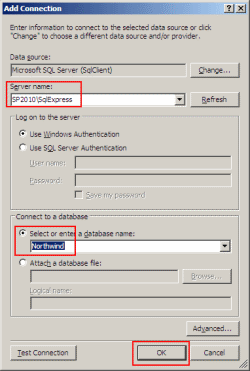
Step3: In the toolbar, go to "Tools" >> "Connect to Database" >> Add Connection >> Establish connection to "Northwind"
Step4: Go to "Server Explorer" >> Open the "Northwind" database >> Tables >> Drag the "Customers" table to DataSet Designer as illustrated below:  


Step5In the "TypedDataSet.aspx, go to ToolBox and drag/drop a GridView control on the designer interface.

Step6: In the "TypedDataSet.aspx", go to code view and in Page_Load method we bind the GridView to the Customer table via LINQ. We query the country (France) and in the GridView display customerId and company. 

Typed DataSet is immensely helpful as we can leverage Visual Studio 2010 IntelliSense and therefore no mistakes in respect of columns names.     

Sample code:
        protected void Page_Load(object sender, EventArgs e)
        {

            //Create an instance of the dataset
            Customers ds = new Customers();

            // connection string
            string connStr = @"Data Source=SP2010\SQLEXPRESS;Initial Catalog=Northwind;Integrated Security=True";

            // create connection
            using (SqlConnection conn = new SqlConnection(connStr))
            {
                //Command text
                string commStr = "select * from customers";

                // create data adapter
                SqlDataAdapter da = new SqlDataAdapter(commStr,conn);

                // fill data table
                da.Fill(ds, "Customers");

                //query the dataset via LINQ
                var query = from c in ds._Customers
                            where c.Country == "France"
                            select new
                            {
                                c.CustomerID,
                                c.CompanyName
                            };

                //Bindthe data to GridView
                GridView1.DataSource = query;
                GridView1.DataBind();
            }

        }


Step7: The output: 


-------------------------------------------------------------------------------
LINQ to DataSet (UnTyped)

Step1: Create a new Visual Studio 2008/2010 project, File >> New >> Project >> Select "ASP.NET Web Application" and name the project: "LINQtoDataSet2"

Step2In the "DataSet.aspx, go to ToolBox and drag/drop a GridView control on the designer interface.

Step3: In the "DataSet.aspx", go to code view and in Page_Load method we bind the GridView to the Customer table via LINQ. We query the customer id, company name  and in the GridView display customerId and company. 

UnTyped DataSet can be error prone as if by mistake we misspelled a column, then we will get an error. Furthermore, we have to us DataTable.AsEnumerable method and this no intellisense as well. 
Sample code:

       protected void Page_Load(object sender, EventArgs e)
        {

            // connection string
            string connStr = @"Data Source=SP2010\SQLEXPRESS;Initial Catalog=Northwind;Integrated Security=True";

            // create connection
            using (SqlConnection conn = new SqlConnection(connStr))
            {
                //Create dataset
                DataSet ds = new DataSet();

                //Command text
                string commStr = "select * from customers";

                //Create data adapter
                SqlDataAdapter da = new SqlDataAdapter(commStr, conn);

                // fill data table
                da.Fill(ds, "Customers");

                DataTable customer = ds.Tables["Customers"];

                //Query the DataTable via LINQ
                var query = from c in customer.AsEnumerable()
                            select new
                            {
                                CustomerId = c.Field<string>("customerid"),
                                Company = c.Field<string>("companyname")
                            } ;

                
                //Bindthe data to GridView          
                GridView1.DataSource = query;
                GridView1.DataBind();
            }
        }


Step7: The output: 

Cheers, 
--aaroh 

Download the source here

References

Sunday, August 1, 2010

Connecting to SharePoint 2007 Web Services

Hi All, 

SharePoint gives the flexibility to write custom web services for developers as well as an ensemble of out-of-the-box web services. Developing SharePoint custom application could involve programming aspects such as object model, web services, XML, etc. If we consider SharePoint's object model, we can do most of the programmatic access in SharePoint. Its far more robust and has an array of features that developer could leverage on. But object model lacks support for remote operations and applications. Whereas, Web Services part supports interoperability and developers could use this technique to communicate with non-SharePoint applications. As we know that Web Services is platform independent and could be developed in Java, ColdFusion, JSP besides .NET. 

Where Web Services resides in SharePoint 2007 and SharePoint 2010?

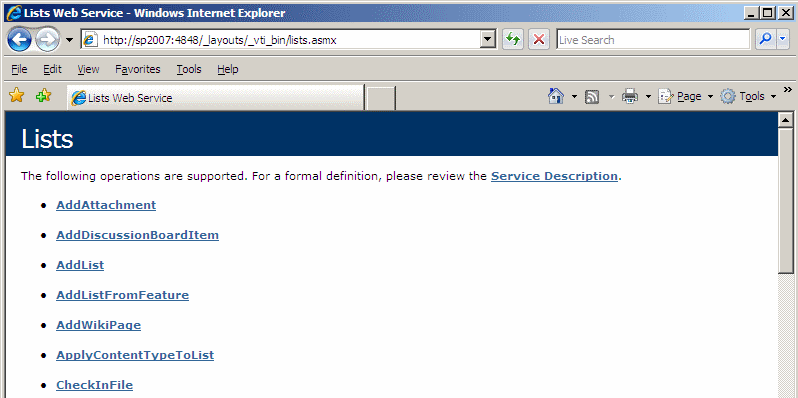
In SharePoint 2007 context, SharePoint web services are implemented as ASP.NET web services and could be found in 12 hive i.e. "C:\Program Files\Common Files\Microsoft Shared\web server extensions\12\ISAPI". When a new SharePoint site is provisioned, a virtual directory named "_vti_bin". Therfore, if want to have all the list web services (lists.asmx) methods for a specific site then just type in:

http://sp2007:4848/_layouts/_vti_bin/lists.asmx


In SharePoint 2010 context, follows exactly same concepts. In 14 hive, we will find a new folder named "WebServices" that contains additional web services and WFC services.


Advantage of Web Services over Object Model in SharePoint 2007? 

There are specialized query that can be used ONLY using web services. Let's take a simple example.  

a) Querying list with multiple folders:
 
Lets create a document library called "IT System Checklists" that contains lot of folders within. This is full structure:

Shared Documents (Main document library)
---------Cars (sub-folder)
----------------------BMW (sub-sub-folders)
----------------------Mercedes Benz
----------------------Ferrari
----------------------Lamborghini
---------Scooters (sub-folder)
----------------------(Same structure )

What I have to search for each folder and do some kind of manipulations. If we use U2U builder,

>>Choose the Site URL: http://testserver/apac/Tools
>>Choose "Connect via Object Model"


>> Right click on the "Shared Documents". We have just option "Query". If we query this list "ID" and order by, there will be just 2 rows i.e. "Cars" and "Scooters". There is no folders like BMW, Mercedes Benz, Ferrari folders etc.


But, we can choose second option: "Connect via SharePoint Web Services"


>> Right click on "Shared Documents", select "GetListItems" and choose "Query Options" tab.
Here we can select any sub folder.


Besides, folders there are other queries which object model could not handle. 
b) Query with DataTime values
c) Query with Calendar lists

A very detailed and extremely useful article by Karine Bosch (from U2U).

SharePoint web services can be leveraged in two ways:
a) Out-of-the-box web services: Utilize and manipulate our code.
b) Custom Web Services: Write our own implementation.    

Now, lets get our hands dirty and write a Window Application that display all the lists in a specific site and when a specific list with its contents. If a list does not have any list items then we display a message to the user.

Step1:  Create a new Visual Studio 2008/2010 project, File >> New >> Project >> Select "Windows Forms Application" and name the project: "WINWebServices"


Step2: Drag a listbox control named "lstSPLists", two group boxes and a GridView as show illustrated below:


Step3: Right click on the "WINWebServices" project and under "References" folder select the "Add Service Reference"

Step4:In the "Add Service Reference" window, click on "Advanced..." button


Step5: Click on "Add Web Reference" button.


Step6: Type in the location of list web service i.e.

http://sp2010:4848/_layouts/_vti_bin/lists.asmx

. Configure the "Web reference name" as "ListService"and click on "Add Reference". When we click on this button a windows authentication will be required and pass the login credentials.   


Step7: Now, we are connected to list web service. We have to populate the "lstSPLists" and use list web service "GetListCollection" method which displays all the lists for a specific site. "GetListCollection" accepts a string and listBox accepts an object. We define a class named: "GetListCollectionItem":

public class GetListCollectionItem
        {
            private String title;

            public String Title
            {
                get { return title; }
                set { title = value; }
            }

            private Guid theGuid;

            public Guid TheGuid
            {
                get { return theGuid; }
                set { theGuid = value; }
            }

            public GetListCollectionItem(string disp, Guid id)
            {
                title = disp;
                theGuid = id;
            }

            public override string ToString()
            {
                return Title;
            }

  }

Step8: Go to designer, select the windows form and double click to get a "Form1_Load"and when a form is loaded then all the lists will be populated automatically in "lstSPLists" control.

        private void Form1_Load(object sender, EventArgs e)
        {
            try
            {

                // Create an instance of the Web service proxy class.
                ListService.Lists listWS = new ListService.Lists();
                listWS.Credentials = CredentialCache.DefaultCredentials;

                // 1) Call the List service "GetListCollection" method
                XmlNode node = listWS.GetListCollection();

                //Loop all the lists for this site and populate in the "lstSPList" control
                foreach (XmlNode n in node.ChildNodes)
                {
                    lstSPLists.Items.Add(new GetListCollectionItem(n.Attributes["Title"].Value, new Guid(n.Attributes["ID"].Value)));
                }
            }
            catch (WebException ex)
            {
                MessageBox.Show("Message: " + ex.Message + "InnerException: " + ex.InnerException);
            }
            catch (System.Web.Services.Protocols.SoapException ex)
            {
                MessageBox.Show("Message: " + ex.Message + "InnerException: " + ex.InnerException);
            }
        }


Build the project and press F5 to view the application. 


Step9: Next step is to double click on the "lstSPLists" event handler using GetListItems methid. We also bind the list items to the grid view. We also check if there is no entry in a list then we display a message to user. 


Its also possible to add new list item, update or delete items as well. I have shown only "Add new item" in this example but other methods are similar.

Cheers,
--Aroh

Download the source here
References:

1) Column with Empty Values not listed in Dataset from GetListItems
http://social.msdn.microsoft.com/Forums/en/sharepointdevelopment/thread/1f11fb91-ffac-4d53-8952-e43caf76f1b9

2) http://nickgrattan.wordpress.com/2007/07/05/starting-out-programming-sharepoint-services/

3) http://msdn.microsoft.com/en-us/library/bb847941%28office.12%29.aspx

4) http://www.sharepointmonitor.com/2007/01/sharepoint-web-service/

5) 3 options

http://www.theserverside.net/tt/blogs/showblog.tss?id=WSRetrieveData 


6) SharePoint 2010 ListData.svc WPF application
http://blogs.msdn.com/b/vsdata/archive/2009/11/26/integrate-sharepoint-list-data-in-your-wpf-application.aspx

7)Creating a SharePoint Visual Web Part using Visual Studio 2010

http://blogs.msdn.com/b/bethmassi/archive/2010/01/28/creating-a-sharepoint-visual-web-part-using-visual-studio-2010.aspx

8) http://www.infoq.com/articles/swanson-moss-web-services 

Friday, July 30, 2010

Disabling an ASP.NET button when clicked

Hi all,

In one of my projects, I had an requirement where when a user browse a file via "FileUpload" control and hit the "Submit" button then button should be disabled. Moreover, I thought besides disabling the button I could display an image as well so that the user interface is more interactive. I have developed a custom user control that is hosted in an application page.

After "Googling" for this requirement, I found a couple sample but most of them used "HTML" input controls. But, I wanted an <asp:Button> control. Finally, I got the trick. When we double click on the "Submit" button, then an event handler has been generated with a "OnClick" server side code. We can leverage on "OnClientClick" property that executes a client side script. Besides this "OnClientClick" property we need to implement our own custom javascript that disables the button. UseSubmitBehavior="false" - Indicates that the button control should use the ASP.NET postback mechanism instead of the client browser's submit mechanism (UseSubmitBehavior property).

 <script type="text/javascript" language="javascript">
        function disableBtn(btnID, newText) {

            var btn = document.getElementById(btnID);
            btn.disabled = true;
            btn.value = newText;

            //Setting Image properties 
            btn.style.backgroundImage = 'url(/_layouts/images/projectName/ajax-loader.gif)';
            btn.style.backgroundRepeat = 'no-repeat';
            btn.style.backgroundPosition = 'center';

        }
    </script>
 
<asp:button id="btnOne" tabIndex="0" 
                    Runat="server" Text="Submit"
                    onclick="btnOne_Click" 
                    OnClientClick="disableBtn(this.id, 'Submitting...')" 
                    UseSubmitBehavior="false" /> 
 
This code works perfectly on Firefox but image loading part did not work. 
There is a very useful tip from  4guysfromrolla where page "Freeze" on the form submission. 

Cheers, 
--aaroh 

References: 
1) ASPAlliance  
2) 4GuysfromRolla


Sunday, July 18, 2010

Taking a crash course in LINQ - Part 1 (LINQ to SQL)


Hi All,

Last week one of my colleagues, showed me LINQ to SQL in our project. I was bit interested that how he had managed the data access layer so easily. Oh boy! after experimenting with LINQ to SQL classes and objects has just blew my mind. LINQ is probably the most revolutionary change in the .NET 3.5 framework besides CLR enhancements, ASP.NET three new controls, WPF (with XAML designer in VS 2008, VS 2010), WCF etc. Check out more on the .NET 3.5 framework. Any developer who wants to learn LINQ for ASP.NET should start off with Scott Guthrie.  

What is LINQ??

Language INtegrated Query (LINQ) a technology inside of ADO.NET built to query relational databases that could be collections, SQL Server databases, DataSets, XML files etc. C# and VB.NET has integration with LINQ and following benefits: 
  1. Full intellisense
  2. Strongly typed
  3. Compile-time checking
  4. Debugging support
  5. Dramatically ease data access and portability!  
For e.g. LINQ to SQL (this blog post), LINQ to DataSet, LINQ to XML, LINQ to SharePoint.
 
LINQ is highly extensible and therefore, we can query data sources beyond what Microsoft ships such as LINQ to Flicker, LINQ to Amazon (via Web Services), LINQ to Google etc.  

Visual Studio 2008/2010 provides "LINQ to SQL" template that provides an object relational model (O/RM) and we can use .NET classes to develop the data access layer. Besides querying the database, we can also CRUD (Create - Insert, Read - Select, Update , Delete) operations as well.

Getting Started with LINQ syntax

1) Standard Query Operator:

To start off our LINQ query, the first thing to be an acquaintance with C# 3.0 and add "System.LINQ", "System.Collections.Generic" in our C# program. Furthermore, IEnumerable interface has to be used which supports a simple iteration over a non-generic collection. Lets take an sample from MSDN that displays names where length of names array is exactly 5. 

---------------------------------------------------------------- 
using System;
using System.Linq;
using System.Collections.Generic;

class app {
  static void Main() {
    string[] names = { "Burke", "Connor", "Frank", 
                       "Everett", "Albert", "George", 
                       "Harris", "David" };

    IEnumerable<string> query = from s in names 
                               where s.Length == 5
                               orderby s
                               select s.ToUpper();

    foreach (string item in query)
      Console.WriteLine(item);
  }
}
-----------------------------------------------------------------------------

Output
BURKE
DAVID
FRANK
 
The "query" variable is in fact a called "query expression" that can have one or more data sources. It has similar to SQL. This expression uses three of the standard query operators: 
  • Where  
  • OrderBy
  • Select 

The arguments to the Where, OrderBy and Select operators are called "Lambda Expressions". 

Lets dissect lambda expressions further. When we develop a data layer via LINQ syntax, we will get a data context (will be discussed shortly in this blog).

In this data context, we can query a table such as "Products" where select ProductName equal to "Chai"

If we notice that parameter "predicate" is of type Func<Product,bool> and involves delegate which is old and tedious way of specification this function. Instead "Lambda Expression" leverage succinct way of achieving the same result follows:
"=>" operator is divided in two sections:
a) The left hand side("c" in above example) defines the parameters and types are usually implied.
b) The right hand side uses the parameters and evaluates to the  defined return type.

Lambda expression is strongly typed and VS 2008/2010 intellisense in great deal.

2) More Standard Query Operator:

There an ensemble of operators that provide useful ways of manipulating sequences and composing queries. These are the most used operators:

a) Sorting and Grouping (OrderBy, OrderByDescending, ThenBy, ThenByDescending)
b) Aggregation operators (Aggregate):
They are defined for aggregating a sequence of values into a single value
c) Count operator (Count)
d) Four numeric aggregation operators (Max, Min, Sum and Average

Let's work on an LINQ to SQL project in ASP.NET. There are pre-requisites:
Sample Project:

Step1:  VS 2008/2010 project

Create a new Visual Studio 2008/2010 project, File >> New >> Project >> Select "ASP.NET Web Application"


Step2: Add a GridView 
Once the project has been added on to VS 2008/2010, we open the "Toolbox" and drag/drop "GridView" control on the "Default.aspx"

Step3: Create a data access layer via LINQ

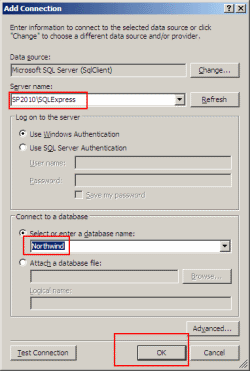
a) To connect to database, we go to "Tools" >> Connect to Database >>  Connection to Database and fill in the server name and the database nameas illustrated below:


We can view the database connections via "Server Explorer" and it will display tables, stored procedure, View etc. 

b) Right-click on "LINQtoSQLWebApp" project >> Add New Item >> Select "LINQ to SQL Classes" and in the name, type in "Northwind"

 
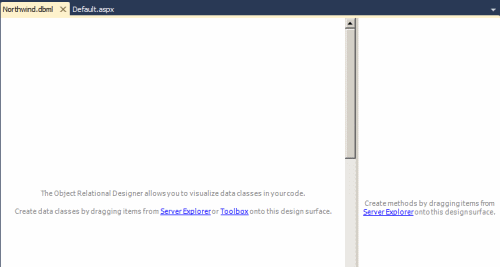
Obviously, there will be not be any class in the DBML designer surface.


We drag Product, Category, Order and Order_Detail tables to the DBML designer surface and we are done with data access layer/Data model. Each of the table has been generated as .NET object with associated properties such as ProductID, ProductName etc. When we drag the Tables from Northwind database, object mapping is done automatically.
 

Step4: Query the data via LINQ

Just for the demonstration purpose, we will query all the rows the product class via LINQ:

-------------------
NorthwindDataContext db = new NorthwindDataContext();

        var query = from p in db.Products
                         select p;

-------------------

Output:
 
What happened is that when we use LINQ query syntax against data model, LINQ to SQL automatically take this query syntax and transform into regular relational SQL expressions, query run against the database, database returns the content and LINQ to SQL constructs classes such as Product class that returns the data. The best part of LINQ syntax is we get expressive and readable constructs. LINQ is strongly typed as well. 

We can use "Where" operator to query just the "Beverages".


-------------------

NorthwindDataContext db = new NorthwindDataContext();

        var query = from p in db.Products
                         where p.Category.CategoryName == "Beverages"
                         select p;


-------------------

Output: 


We can do some further querying using powerful LINQ constructs. For e.g. in the where clause "CategoryName", we can filter category name by using LINQ operators such as count, Max, Min, Average, Spilt, ToLower, ToUpper, Sum, Remove, Replace, StartsWith etc.


-------------------
NorthwindDataContext db = new NorthwindDataContext();

var query = from p in db.Products
                    where p.Category.CategoryName.StartsWith("c")
                    select p;
--------------------

Output:


Many times, we do not need all the columns to be returned in the GridView. It can be done in LINQ as well:

-------------------
NorthwindDataContext db = new NorthwindDataContext();

var query = from p in db.Products
                    where p.Category.Products.Count > 5
                    select new
                        {
                            p.ProductID,
                            p.ProductName

                        };
-------------------

Output: 


We can use sum, count, average of LINQ operators to generate more powerful query. 


-------------------
NorthwindDataContext db = new NorthwindDataContext();

 var query = from p in db.Products
                    where p.Category.Products.Count > 5
                    select new
                        {
                            p.ProductID,
                            p.ProductName,
                            TotalUnits = p.Order_Details.Sum(o => o.Quantity),
                            Revenue = p.Order_Details.Sum(o => o.Quantity * o.UnitPrice)

                        };
---------------------


Output:


Creating Server side paging of our Query Results
One of the common needs in web scenarios is to be able to efficiently build data paging UI.  LINQ provides built-in support for two extension methods that make this both easy and efficient - the Skip() and Take() methods.

We can use the Skip() and Take() methods below to indicate that we only want to return 10 product objects - starting at an initial product row that we specify as a parameter argument. 


-------------------
NorthwindDataContext db = new NorthwindDataContext();

 var query = from p in db.Products
                    where p.Category.Products.Count > 5
                    select new
                        {
                            p.ProductID,
                            p.ProductName,
                            TotalUnits = p.Order_Details.Sum(o => o.Quantity),
                            Revenue = p.Order_Details.Sum(o => o.Quantity * o.UnitPrice)

                        };
GridView1.DataSource = query.Skip(20).Take(10);
 GridView1.DataBind();
---------------------

Output:


We have just developed a mapping objects to relational data with the Visual Studio designer tool that automated code generators which help us to create the O/RM map objects.


Besides Visual Studio designer tool that are two more options that generate O/RM map objects


  • SQLMetal.exe - A command line tool that generate both .DBML files and O/RM code for a given database. Its excellent for larger databases. 
  • Code Editor - Connecting classes to database objects using code.
   
Download the source here. 
References: 

1) Video by Scott Guthrie - (Part 1, Part 2 , Part 3)
2) Complete tutorials series of LINQ to SQL by Scott Guthrie

Saturday, July 10, 2010

How to: Display SharePoint groups and users in a custom application page.

Hi all,

In one of my projects, I had to develop an application page which display all SharePoint groups & users for a specific site collection and all the users even with visitor role should be able to view this page. Out-of-the-box, SharePoint 2007 does not provide this page. Therefore, I developed a solution to facilitate users.

Prerequisite:
Publishing features (site and web) level must be enabled.

What has to be developed:
  1. An custom application page 
  2. A user control and application page will host this user control.
Step1: Open Visual Studio 2008 and create a WSPBuilder and name it: DisplayGroupsUsers 
Step2: Create an application page named "DisplayGroupsUsers.aspx". (Refer to my earlier blog post)

Custom Application Page: 
-----------------------------------------------------------------------------------------
<%@ Page Language="C#" MasterPageFile="~masterurl/default.master" %>

<%--Control Place Holder--%>
<asp:Content ID="PageTitle" runat="server" contentplaceholderid="PlaceHolderPageTitle" >
   View Group Membership
</asp:Content>

<asp:Content ID="PageTitleInTitleArea" runat="server"
             contentplaceholderid="PlaceHolderPageTitleInTitleArea" >
   View Group Membership
</asp:Content>
<asp:Content ID="Main" runat="server" ContentPlaceHolderID="PlaceHolderMain">
    <div>

</div>
 
</asp:Content>
---------------------------------------------------------------------------------------------

Step3: Create a user control named: "COM_DisplayGroupsUsers.ascx": (Refer to my earlier blog post)
Step4: In this user control, we will display SharePoint groups and users in a ASP.NET TreeView control.
For a user interface for the user control, we can add some text and drag drop the TreeView control from the "Toolbox" as follows:

COM_DisplayGroupsUsers.ascx: 


---------------------------------------------------------------------------------------------------------------------
<%@ Control Language="C#" AutoEventWireup="true" CodeBehind="COM_DisplayGroupsUsers.ascx.cs" Inherits="DisplayGroupsUsers.COM_DisplayGroupsUsers,  DisplayGroupsUsers, Version=1.0.0.0, Culture=neutral, PublicKeyToken=f006780d75630210" %>
<p>
    This page displays all the SharePoint groups and users for the site.
</p>

<p>
    <asp:TreeView ID="treeView" runat="server" ImageSet="Contacts" NodeIndent="10"
        Width="250px">
        <ParentNodeStyle Font-Bold="True" ForeColor="#5555DD" />
        <HoverNodeStyle Font-Underline="False" />
        <SelectedNodeStyle Font-Underline="True" HorizontalPadding="0px"
            VerticalPadding="0px" />
        <NodeStyle Font-Names="Verdana" Font-Size="8pt" ForeColor="Black"
            HorizontalPadding="5px" NodeSpacing="0px" VerticalPadding="0px" />
    </asp:TreeView>
</p>
 ----------------------------------------------------------------------------------------------------------

 For the user control code, we have to supply the delegate (SPSecurity.RunWithElevatedPrivileges) so that all users can view all SharePoint groups and users. Once its done,we have to manipulate Groups and users in a treeview.

---------------------------------------------------------------------------------------------------------
COM_DisplayGroupsUsers.ascx.cs: 
using System;
using System.Collections;
using System.Configuration;
using System.Data;
using System.Web;
using System.Web.Security;
using System.Web.UI;
using System.Web.UI.HtmlControls;
using System.Web.UI.WebControls;
using System.Web.UI.WebControls.WebParts;
using Microsoft.SharePoint;


namespace DisplayGroupsUsers
{
    public partial class COM_DisplayGroupsUsers : System.Web.UI.UserControl
    {
        protected void Page_Load(object sender, EventArgs e)
        {
            if (!IsPostBack)
            {
                  SPSecurity.RunWithElevatedPrivileges(delegate
                                                           {

                                                               //Get the current site
                                                               using (SPSite site = new SPSite(SPContext.Current.Site.ID))
                                                               {
                                                                   using (SPWeb currentWeb = site.OpenWeb())
                                                                   {
                                                                       // set the tree view properties
                                                                       treeView.ShowLines = true; //show lines
                                                                       treeView.ExpandDepth = 1; //expand level one in the treeview
                                                                       
                                                                       //get all the SharePoint groups within current site
                                                                       SPGroupCollection groupCollection =
                                                                           currentWeb.Groups;

                                                                       //loop all SharePoint groups
                                                                       foreach (SPGroup group in groupCollection)
                                                                       {
                                                                           //get all the SharePoint users within a specified group
                                                                           SPUserCollection userCollection = group.Users;

                                                                           //build the tree
                                                                           TreeNode rootNode = new TreeNode(group.Name,
                                                                                                            "",
                                                                                                            "~/_layouts/images/GroupsUsers/Groups.gif",
                                                                                                            "", "");
                                                                           treeView.Nodes.Add(rootNode);

                                                                           //loop the users in a specific SharePoint group
                                                                           foreach (SPUser user in userCollection)
                                                                           {
                                                                               //add a new node for the current user
                                                                               TreeNode newNode = new TreeNode(
                                                                                   user.Name, "",
                                                                                   "~/_layouts/images/GroupsUsers/User.gif",
                                                                                   "", "");
                                                                               rootNode.ChildNodes.Add(newNode);

                                                                           }

                                                                       }

                                                                   }
                                                               }

                                                           });
               
            }

        }
    }

------------------------------------------------------------------------------------------------

Step5: In the DisplayGroupsUser.aspx page, we need to host the user control as follows:

 DisplayGroupsUsers.aspx with user control: 

-------------------------------------------------------------------------------------------------- 
<%@ Page Language="C#" MasterPageFile="~masterurl/default.master" %>

<%@ Register src="~/_controltemplates/COM_DisplayGroupsUsers.ascx" tagname="COM_DisplayGroupsUsers" tagprefix="wssuc" %>

<%--Control Place Holder--%>
<asp:Content ID="PageTitle" runat="server" contentplaceholderid="PlaceHolderPageTitle" >
   View Group Membership
</asp:Content>

<asp:Content ID="PageTitleInTitleArea" runat="server"
             contentplaceholderid="PlaceHolderPageTitleInTitleArea" >
   View Group Membership
</asp:Content>
<asp:Content ID="Main" runat="server" ContentPlaceHolderID="PlaceHolderMain">
    <div>
<wssuc:COM_DisplayGroupsUsers ID="COM_DisplayGroupsUsers" runat="server" />

</div>
 
</asp:Content>

--------------------------------------------------------------------------------------------

The final project structure will look like this:

Step6: Build and deploy the WSP. Go to Site Actions >> Check if both the publishing features have been activated >> Once verified, Activate our groups and users feature >> Navigate to the "Pages" document library >> Upload the "DisplayGroupsUsers.aspx" page which is located at 12 hive >> Templates >> Features >> DisplayGroupsUsers folder. The final custom application page will look this:


Cheers,
--aaroh

Download the source here.

Reference: Creating a Tree View Control WebPart

Sunday, June 27, 2010

Enabling javascript IntelliSense in Visual Studio 2010 for SharePoint 2010

Hi all,

Its quite confusing when you develop a custom dialog box or customize ribbon control in SharePoint 2010 there is no javascript IntelliSense in VS 2010. Its easy to enable by adding referencing these JavaScript files on the top:

/// <reference name="MicrosoftAjax.js" />
/// <reference path="file://C:/Program Files/Common Files/Microsoft Shared/Web Server Extensions/14/TEMPLATE/LAYOUTS/SP.core.debug.js" />
/// <reference path="file://C:/Program Files/Common Files/Microsoft Shared/Web Server Extensions/14/TEMPLATE/LAYOUTS/SP.debug.js" />

Its a tip from Chakkardeep's blog.
In fact, its similar for Microsoft Ajax library where ASP.NET developers have to add a reference to the MicrosoftAjax.js to the JavaScript files.

/// <reference name="MicrosoftAjax.js"/>

Cheers,
--Aaroh

Friday, June 18, 2010

The solution cannot be removed when a job is scheduled or running.

Hi All,


While working for a custom feature which is a third party component for SharePoint. Somehow, I wanted to removed and eventually delete this feature. Surprisingly, when I tried rectract this feature via Central Admin, I got a an error.

BUG:
The solution cannot be removed when a job is scheduled or running.  

After googling, someone had the same issue. What we have to do is follow these steps:

  1.  Open command prompt and enumerate the running deployments by executing this command: 
    stsadm -o enumsdeployments
  2. Now, we obtain the jobid and cancel this deployement as follows:
    stsadm -o canceldeployment -id 2529c788-971c-46a3-b69f-a2a0a1fcc851
That's it. We can then retract and delete the solution. 

Cheers,
--aaroh

Low Code Reimagined with AI + Copilot Pitch Deck - Copy Copilot day (Virtual) - 2023

 Hi All,  I presneded a session at Pune UG on Low Code Reimagined with AI + Copilot Pitch Deck.  Video is at this address  https://www.youtu...